Workspaces and environments let you organize projects and separate traffic contexts.

Workspaces

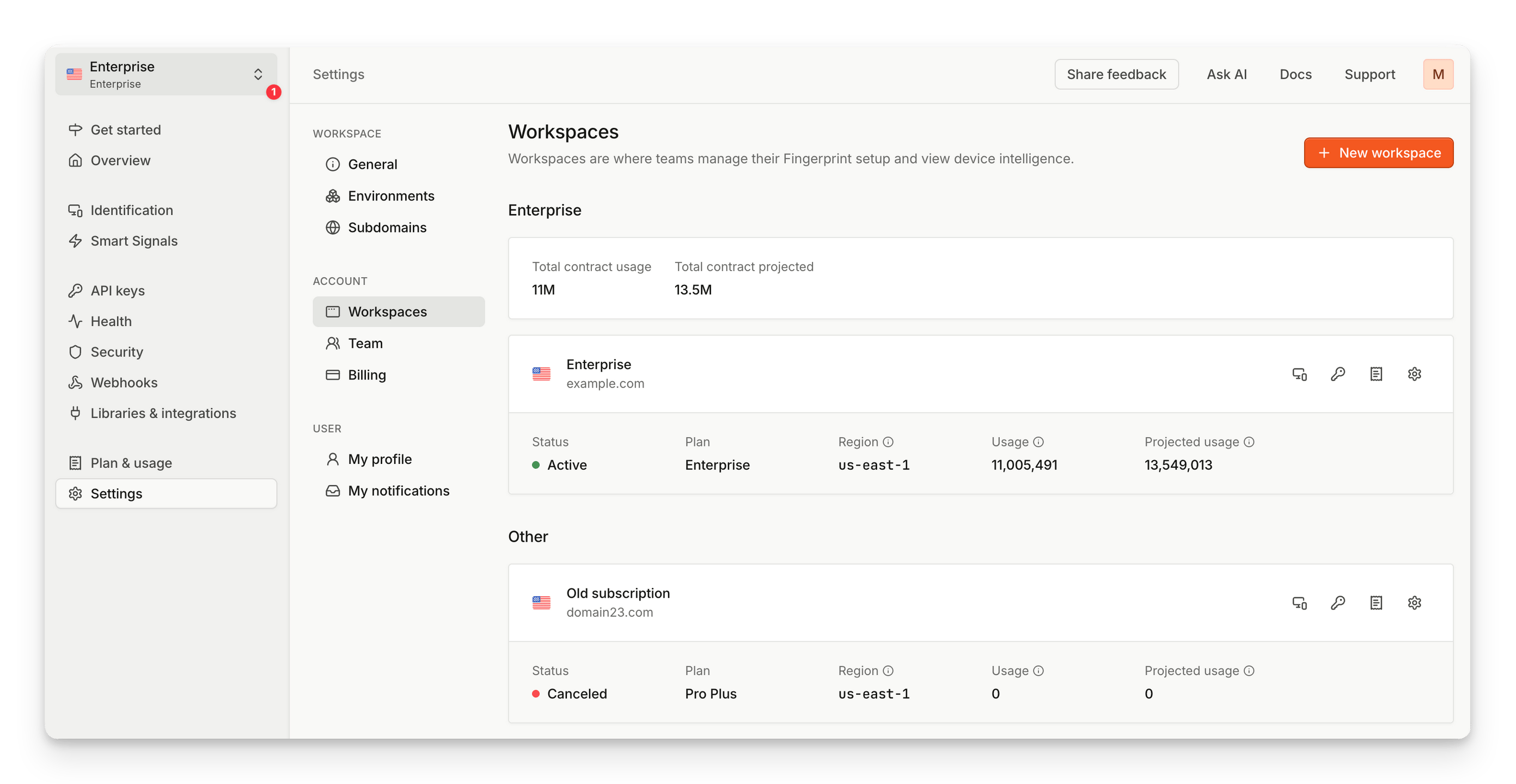
A Workspace is a dedicated project space (tied to your account) where you manage and configure Fingerprint for a given application or business unit. Each workspace has its own data and settings – for example, you might have one workspace for your primary business and another for your secondary business managed by a dedicated team.
Clean Shot 2026 05 28 At 13 53 32@2x
To switch between different workspaces, use the workspace selector (1) on the top of the sidebar. To manage your workspaces, go to Settings > Workspaces. Your plan is tied to your workspace. If you’re on the Enterprise plan, reach out to Customer Support for additional workspaces.

Environments

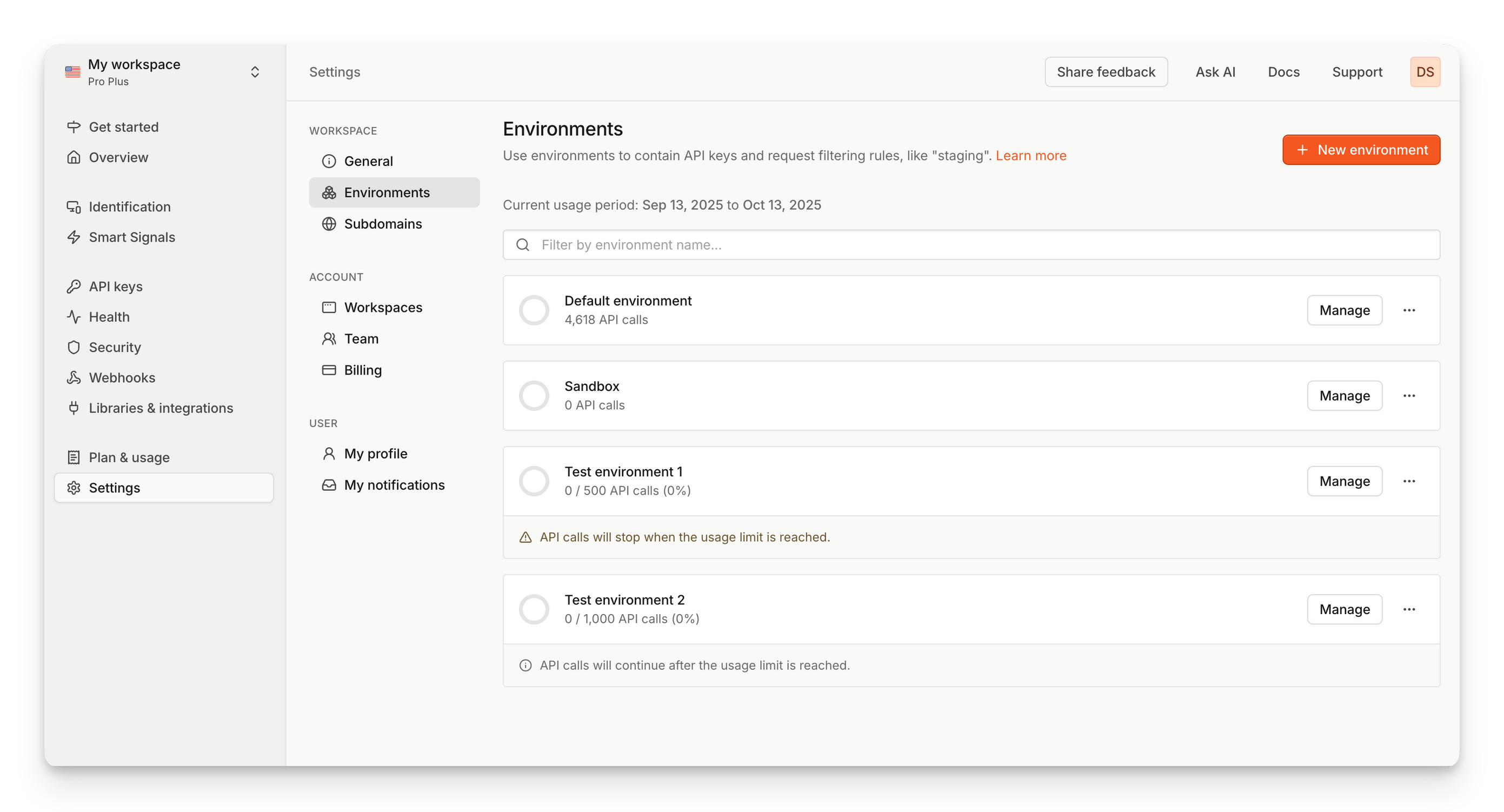
A workspace can contain multiple Environments, which are useful for isolating production vs. development or staging setups. For instance, you might have “Prod” and “Dev” environments under the same workspace, or different domains under separate environments. Learn more about multiple environments.
Clean Shot 2026 05 28 At 13 54 12@2x
To see environment specific data and resources, look for environment filter options on the pages you’re working with. To manage your environments, go to Settings > Environments. Each workspace starts with a default environment which cannot be removed, but you can add or delete others as needed. You can optionally set a API usage threshold for each environment if you want to be notified about excess usage. If you’re an Enterprise customer, you can also set a limit to restrict API usage for each environment.

Comparison

If you manage multiple websites, applications, or business units, the best option will depend on your specific use case and how separate you need them to be. Both workspaces and environments have advantages and trade-offs, which you can compare below.