

What is Suspect Score
Suspect Score is a single risk score that helps you quickly identify suspicious activity using Smart Signals. Instead of analyzing each signal individually, Suspect Score combines them into one value—making it easier to make fraud decisions in real time. Each Smart Signal contributes to the score with a predefined weight. The more suspicious signals are triggered, the higher the final score. It’s part of the Smart Signals payload available in Server API, Webhooks and Sealed Client Results.Suspect Score Weights
Each Smart Signal has its own weight, contributing to the final score. The weights are currently based on the probability that the selected Smart Signal is triggered on a global scale. Smart Signals that are less likely to be triggered have stronger weights, and vice versa. Weights might have slightly different values based on the request’s originating platform (web, Android and iOS). This is caused by different representation of average traffic for each platform.N/A in the table below means that the signal is not reflected in the Suspect Score. This might happen for two reasons - either the signal is not available on that particular platform (see our Smart Signals introduction page for signal availability) or the signal had low incidence rate and would skew the computation too much (the weight would be extremely high).
Weights Table
How to Use Suspect Score
Suspect Score can be used to flag and review possible suspicious activity. It can be used to quickly integrate Smart Signals into your fraud protection workflow without the need to explore fraud correlations of individual Smart Signals.Custom Weights Configuration
Fingerprint allows you to customize Suspect Score weights in two ways:- Automatic weight generation using fraud-labeled data
- Manual adjustment of signal weights
Automatic Weight Generation Using Fraud-Labeled Data
You can train Suspect Score using your own fraud-labeled data to better reflect your specific risk patterns. Fingerprint analyzes your dataset and recommends optimized weights based on how each Smart Signal correlates with fraud. Based on this analysis, the system generates recommended weights for each signal. These recommendations help tune the Suspect Score so it better reflects the fraud patterns specific to your traffic.Preparing Your Dataset
Your dataset must meet the following requirements: Format- CSV file
- Minimum count of events to upload is 1,000
- Maximum file size: 10 MB
- Request ID: the Fingerprint request identifier
- Fraud label: indicates whether the visitor was fraudulent
Uploading Your Dataset
Follow these steps to generate Suspect Score weights using fraud-labeled data.- Navigate to Suspect Score Analytics
- Upload Your File
- Drag and drop a CSV file into the upload area
- Click Choose to select a file from your computer
- Start the Training Process
- Evaluates each Smart Signal
- Measures how strongly it correlates with fraudulent activity
- Generates optimized weights for the Suspect Score
- Review Generated Weights
Reviewing Processed Fraud Data
All analyzed datasets appear in the Processed Data section. This section acts as a history log for fraud analysis runs and allows you to:- Track uploaded datasets
- Monitor analysis results
- Review recommended weight changes
- Apply or reject updates to your Suspect Score configuration
Dataset Status
Processed datasets are organized into three categories. Needs Review Files listed under Needs review contain recommendations that have not yet been applied. These datasets require review before any changes are applied. Accepted The Accepted section contains datasets whose recommendations were approved and applied. Once accepted:- The recommended weights are applied to your Suspect Score configuration
- Future requests will be scored using the updated weights
Reviewing Recommended Changes
When you click a dataset in the Needs review section, a review panel opens that displays both signal-level changes and a suggested overall threshold. This threshold represents the score above which a request is likely to be considered suspicious, based on your uploaded fraud data. The interface groups Smart Signals into two categories. Changed Signals listed under Changed have updated weights based on the fraud patterns detected in your dataset. These adjustments increase or decrease the influence of the signal in the Suspect Score calculation. Unchanged Signals listed under Unchanged were analyzed but did not show a strong correlation with fraud in the uploaded dataset. Their weights remain the same.Manual adjustment of signal weights
You can manually adjust weights to match your use case. Open the Dashboard and go to:- Smart Signals → Suspect Score
- Select the correct tab based on the platform for which you would like to configure the weights (Web, iOS SDK or Android SDK)
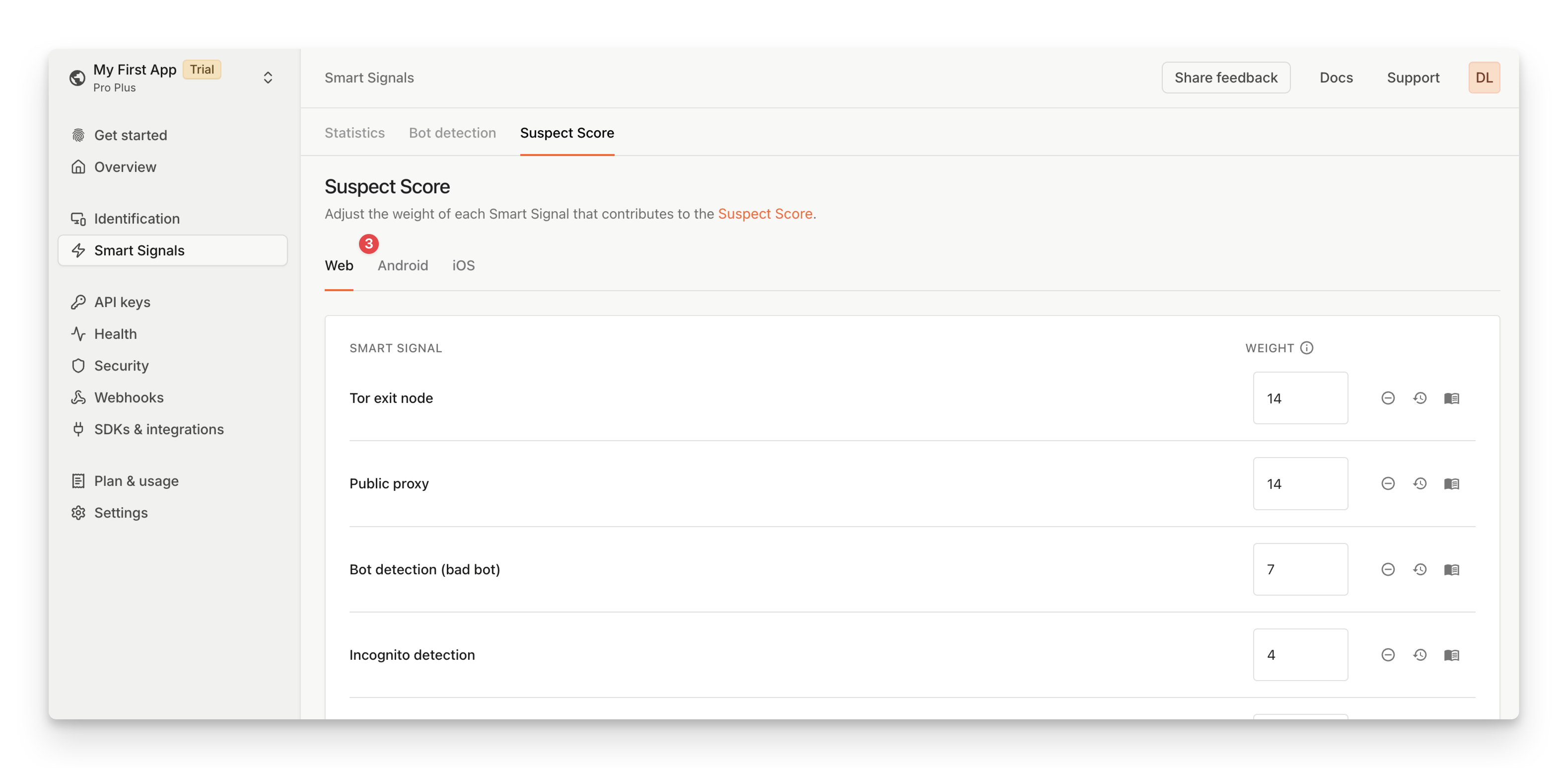
Step 3: Select platform tab
- Input your preferred weights as integers between 0 and 10000 on the right
- Click on Save Changes
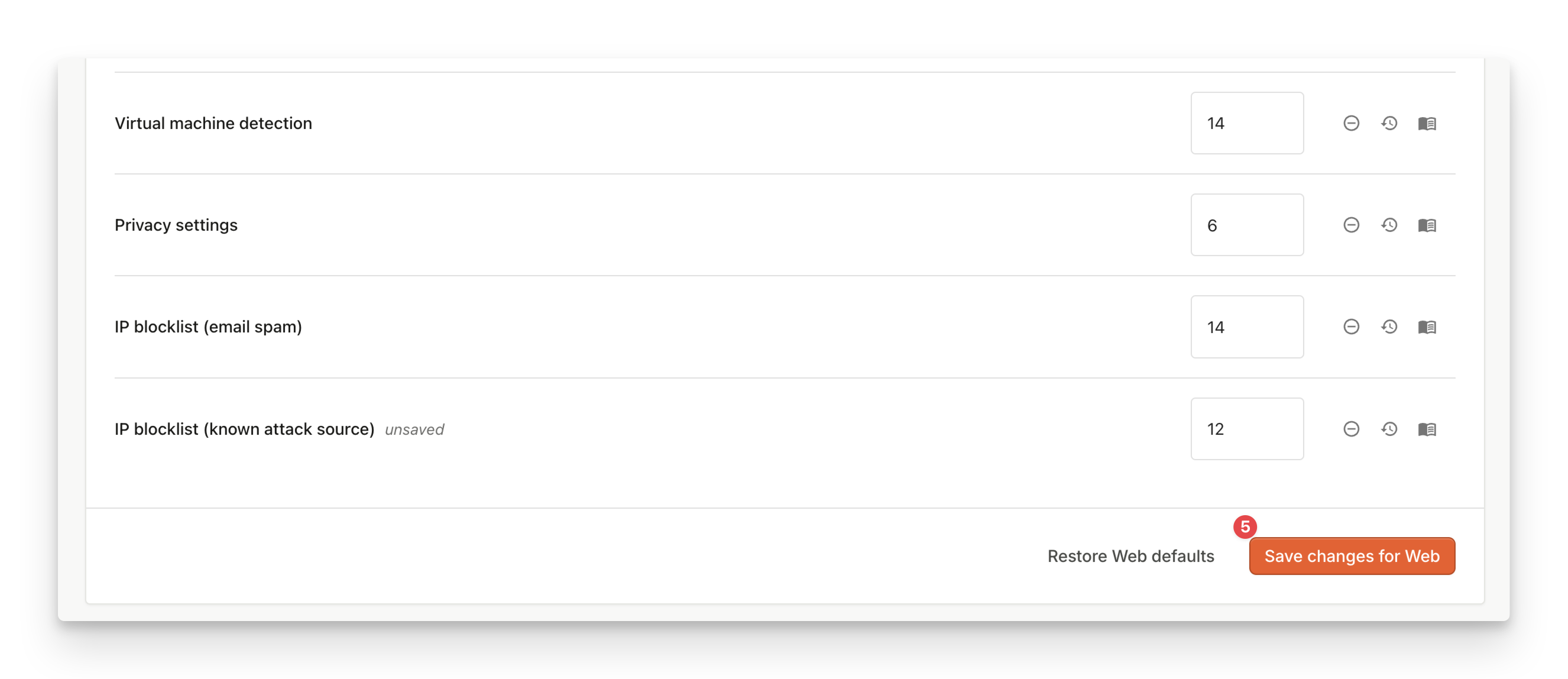
Step 5: Save changes
Configuring Weights by Confidence Level
VPN Detection and Residential Proxy Detection support confidence-based weighting. Instead of a single weight per signal, you can assign separate weights to low, medium, and high confidence detections to better reflect your risk tolerance.VPN Detection
By default, VPN Detection uses method-based weighting, where each detection method (publicVPN, timezoneMismatch, and others) has its own configurable weight. You can switch to confidence-based weighting to assign a single weight per confidence level instead.
Only one mode can be active at a time. Switching modes preserves the other configuration but deactivates it until you switch back.
To switch VPN Detection to confidence-based weighting:
- Open the Dashboard and go to Smart Signals → Suspect Score
- Under VPN Detection, select Confidence from the weighting mode selector
- Input your preferred weights for Low confidence, Medium confidence, and High confidence
- Click Save Changes
Residential Proxy Detection
Residential Proxy Detection uses a flat-value weighting by default. You can switch to confidence-based weighting, and the page then displays three separate weight inputs, one for each confidence level. To switch Residential Proxy detection to confidence-based weighting:- Open the Dashboard and go to Smart Signals → Suspect Score
- Under Residential Proxy, select Confidence from the weighting mode selector
- Input your preferred weights for Low confidence, Medium confidence, and High confidence
- Click Save Changes
Disabling a Weight Completely
Some scenarios like the one mentioned above with the high VPN incidence rate might result in the need to disable a particular Smart Signal. In those cases it’s possible to set the weight to zero through a dedicated button in the user interface.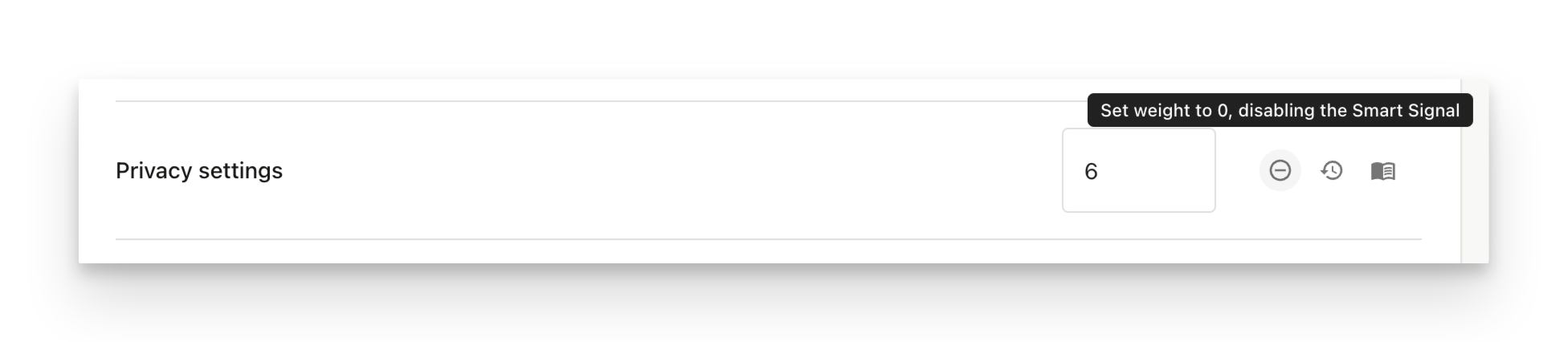
Set weight to 0 to disable it
Restoring Defaults
We will always provide a set of default values based on our internal understanding of Smart Signal incidence rates (the statistical analysis mentioned in a previous section). Individual Suspect Score weights can be restored to those defaults by clicking on the restore default weight value button.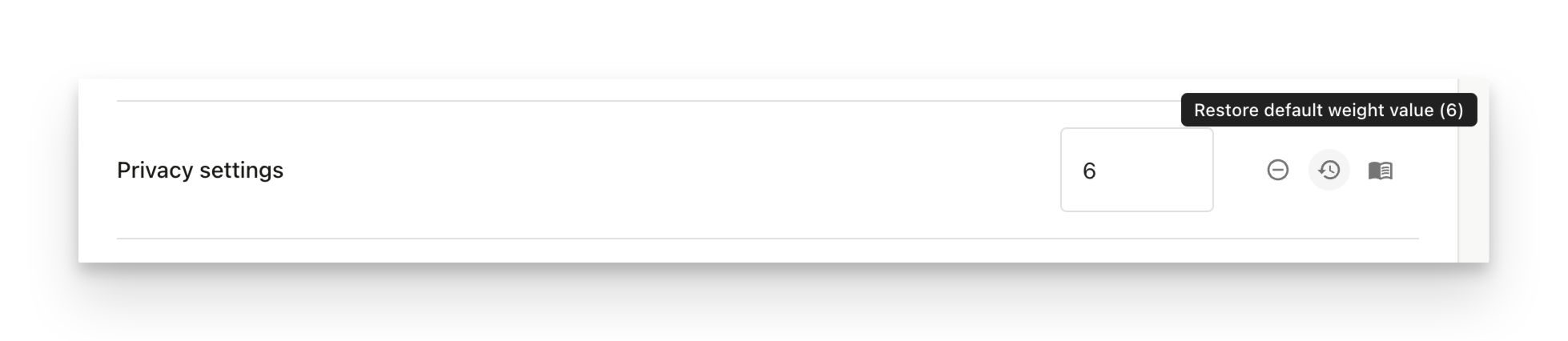
Restore weight to its default value
What’s Next Want to know the detail about each individual Smart Signal? Visit our Smart Signals Overview page to get more information.