

Check if your subdomain uses a legacy certificate
If any of your subdomains use a legacy certificate, the workspace overview shows an Action needed notice. Select Manage Subdomains to open the list of your subdomains. You can also go to Settings > Subdomains directly. Subdomains with a legacy certificate have a Legacy tag and a Migrate button. If you already started a migration, the button reads Resume migration instead.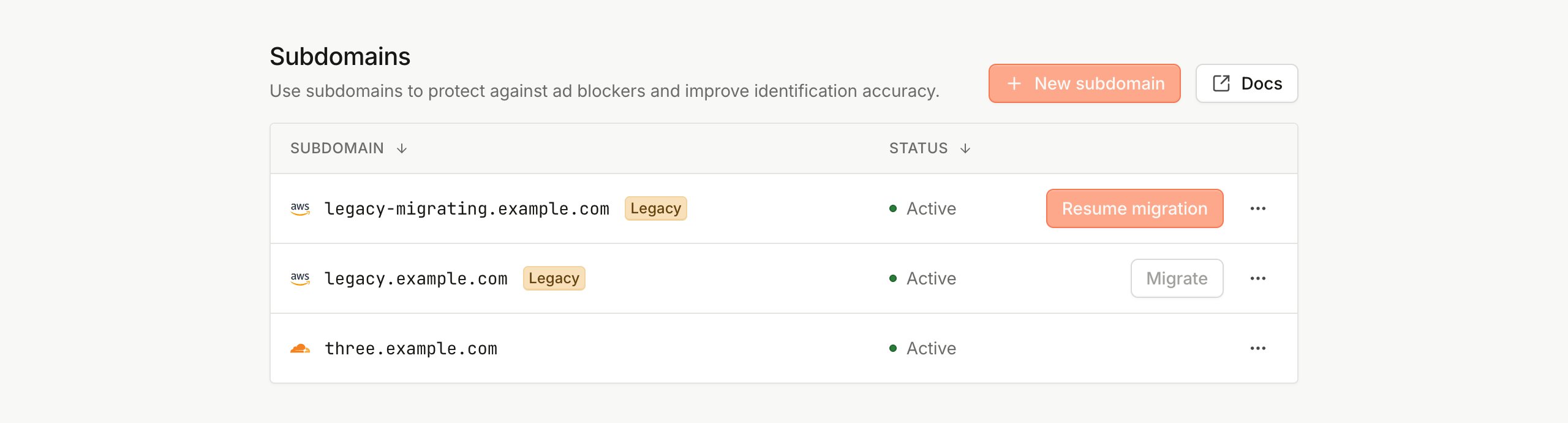
Legacy subdomains on the Subdomains page
Before you start
- Make sure you or your DNS administrator can edit the DNS records for your domain.
- Choose a quiet period for the migration. Avoid migrating during a product launch, a proof of concept, or peak traffic. Migrate before such an event, leaving time for DNS changes to propagate, or after it.
- Plan for at least 24 hours between updating your DNS records and finishing the migration.
Migration overview
- Start the migration in the dashboard. Your current certificate keeps serving traffic.
- Replace the old A records with the new ones in your DNS.
- Wait for the DNS changes to propagate.
- Verify that identification works on your website.
- Finish the migration. This step can’t be undone.
Step 1: Start the migration
Go to Settings > Subdomains and select Migrate next to the legacy subdomain. Fingerprint prepares a new certificate for the same subdomain. Nothing changes for your live traffic yet, because the old certificate keeps serving requests until you finish the migration. You can leave at any point and come back later. Select Resume migration to continue where you stopped.Step 2: Replace your DNS records
The subdomain page lists the exact DNS records for your migration: the new A records to add, and the old A records that must be removed. In your DNS provider:- Add the new A records listed under Configure DNS records. To import them in bulk, select Download zone file.
- Delete the old A records listed under The following records must be removed.
- If the dashboard shows a CAA record, add it as well. For details, see Conflicting CAA records.
- If you use Cloudflare DNS, set the records to DNS only, not Proxied.
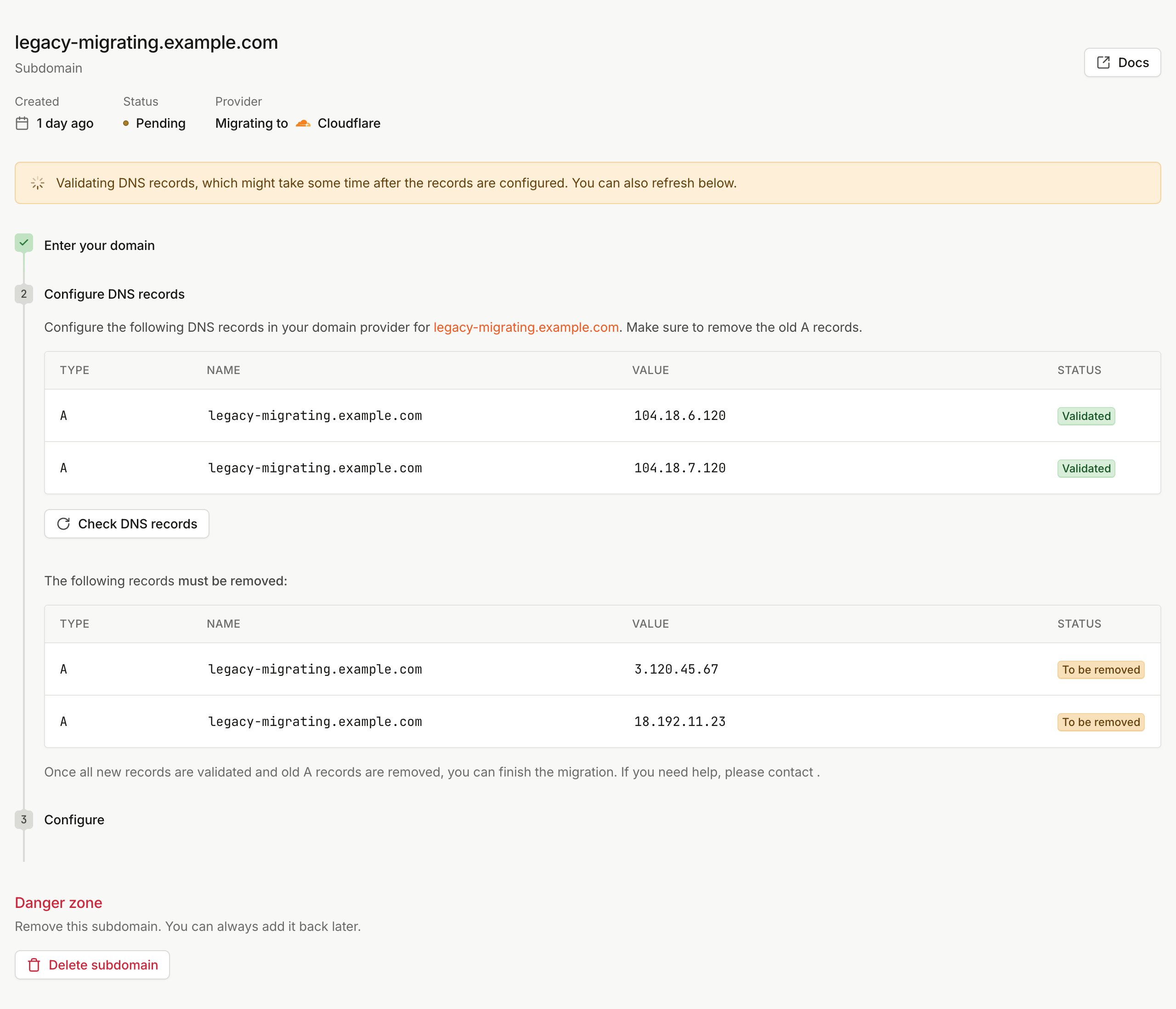
The new records are validated, but the old A records still need to be removed
Step 3: Wait for the DNS changes to propagate
The Finish migration button becomes available 24 hours after your DNS records are correct and the new certificate is issued. The wait gives your DNS changes time to reach all visitors. As the changes propagate, visitors start reaching your subdomain through the new certificate. Use this time to confirm that identification works on your website.Step 4: Verify identification
Open your website and confirm that identification works:- In the Network tab of your browser’s developer tools, requests to your subdomain succeed without certificate errors.
- New identification events from your website appear on the Events page in the dashboard.
Step 5: Finish the migration
Select Finish migration. Fingerprint switches off the old certificate within about a minute.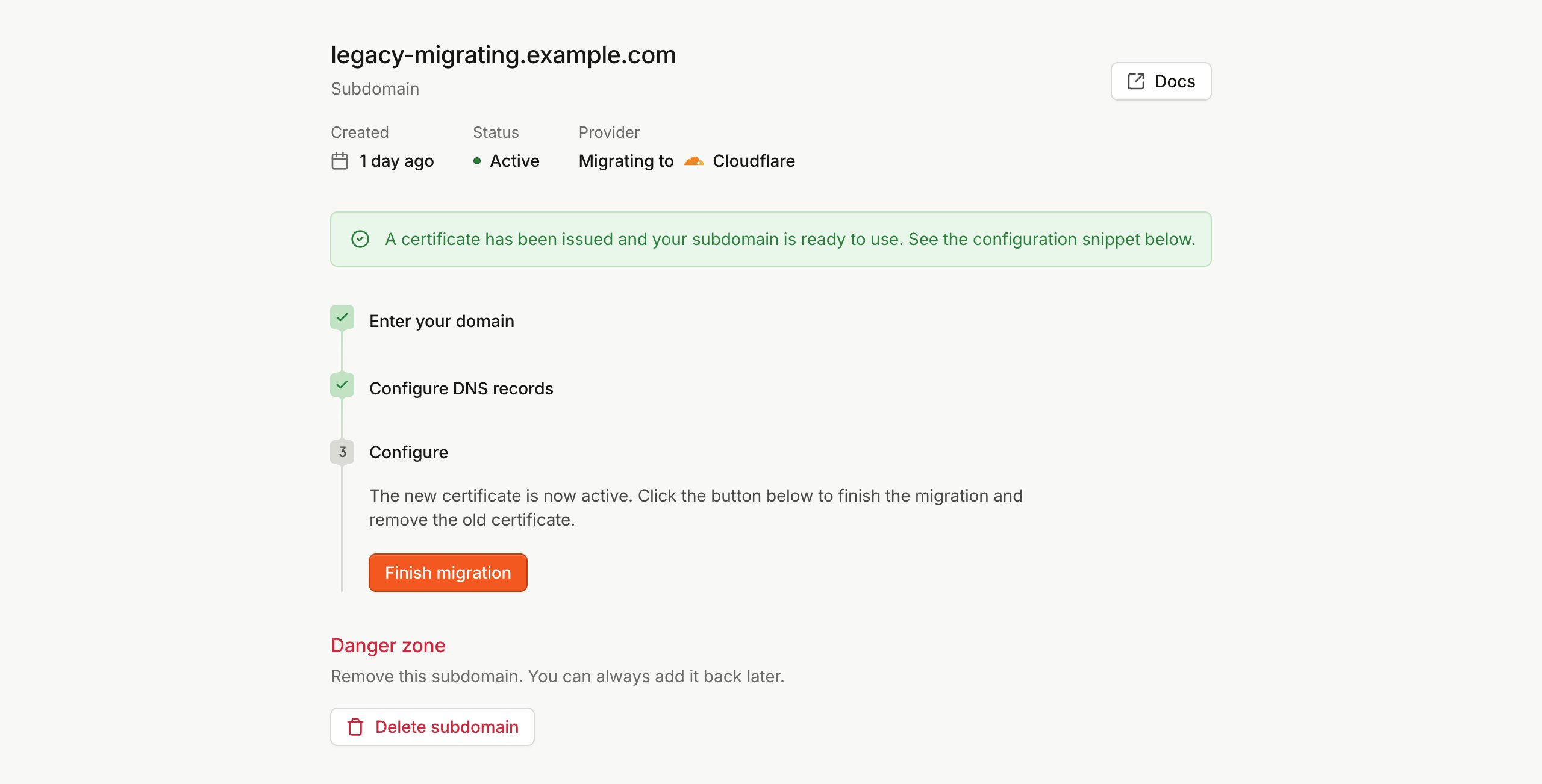
The new certificate is active and the migration is ready to finish
Troubleshooting
The old records still show To be removed
The old A records are still in your DNS, or DNS caches haven’t expired yet. Make sure you deleted the old records, not just added the new ones. To check what your DNS returns, run the following command, replacingmetrics.yourwebsite.com with your subdomain:
DNS validation timed out
If the new records aren’t validated in time, the subdomain status changes to Timed out. Your live subdomain isn’t affected. Select Restart, then make sure the DNS records shown in the dashboard are in place.Contact support
Contact the support team if:- The dashboard still shows Validating DNS records more than 24 hours after you updated your records, and the records look correct.
- You see errors after you finished the migration.
- Your DNS setup is unusual and you aren’t sure how to apply the changes.