

This guide assumes you are using JavaScript agent v4. If you are still
using JavaScript agent v3, see Cloudflare Proxy Integration
(v3) or migrate to JavaScript agent
v4.
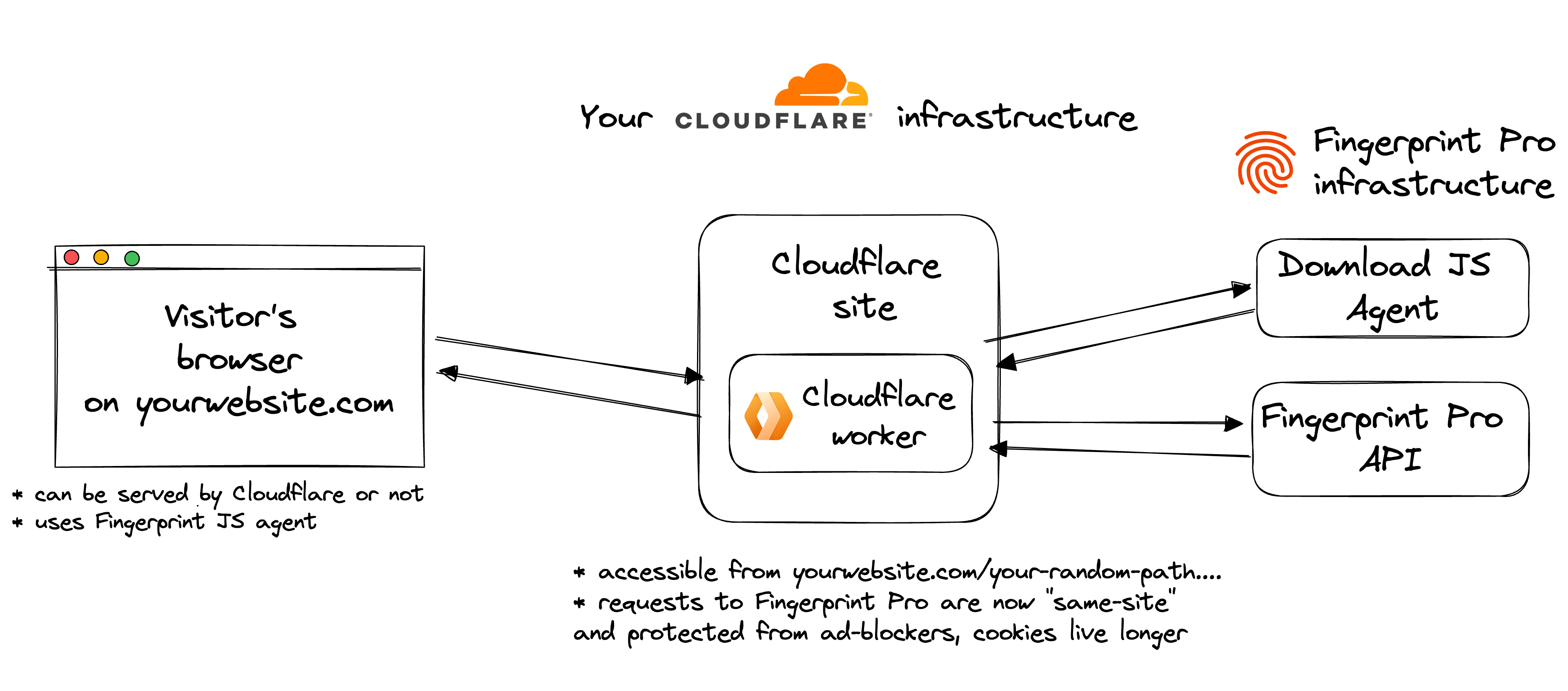
- Fingerprint infrastructure
- Cloudflare worker, created and managed by Fingerprint but running in your Cloudflare account
- Fingerprint JavaScript agent installed on your website
The benefits of using Cloudflare Proxy Integration
- Significant increase in accuracy in browsers with strict privacy features such as Safari or Firefox
- Cookies are recognized as first-party, so they can live longer in the browser and extend the lifetime of visitor IDs
- Ad blockers do not block the Fingerprint JavaScript agent from loading
- Ad blockers do not block identification requests because they are sent to a path or subdomain that belongs to your site
- Insight and control over identification requests that you can combine with other Cloudflare features such as WAF or Analytics
- The ability to manage unlimited subdomains and paths and provide Fingerprint services to all your customers at any scale while benefiting from first-party integration improvements
- Cookie security: the Cloudflare integration drops all cookies sent from the origin website. The worker code is open-source, so you can verify and audit this behavior
- Easier compliance and auditing
Setup
The Cloudflare configuration guide in the Fingerprint dashboard will help you set everything up step by step. Start the guide from SDKs & integrations.Step 1: Follow the Cloudflare configuration wizard
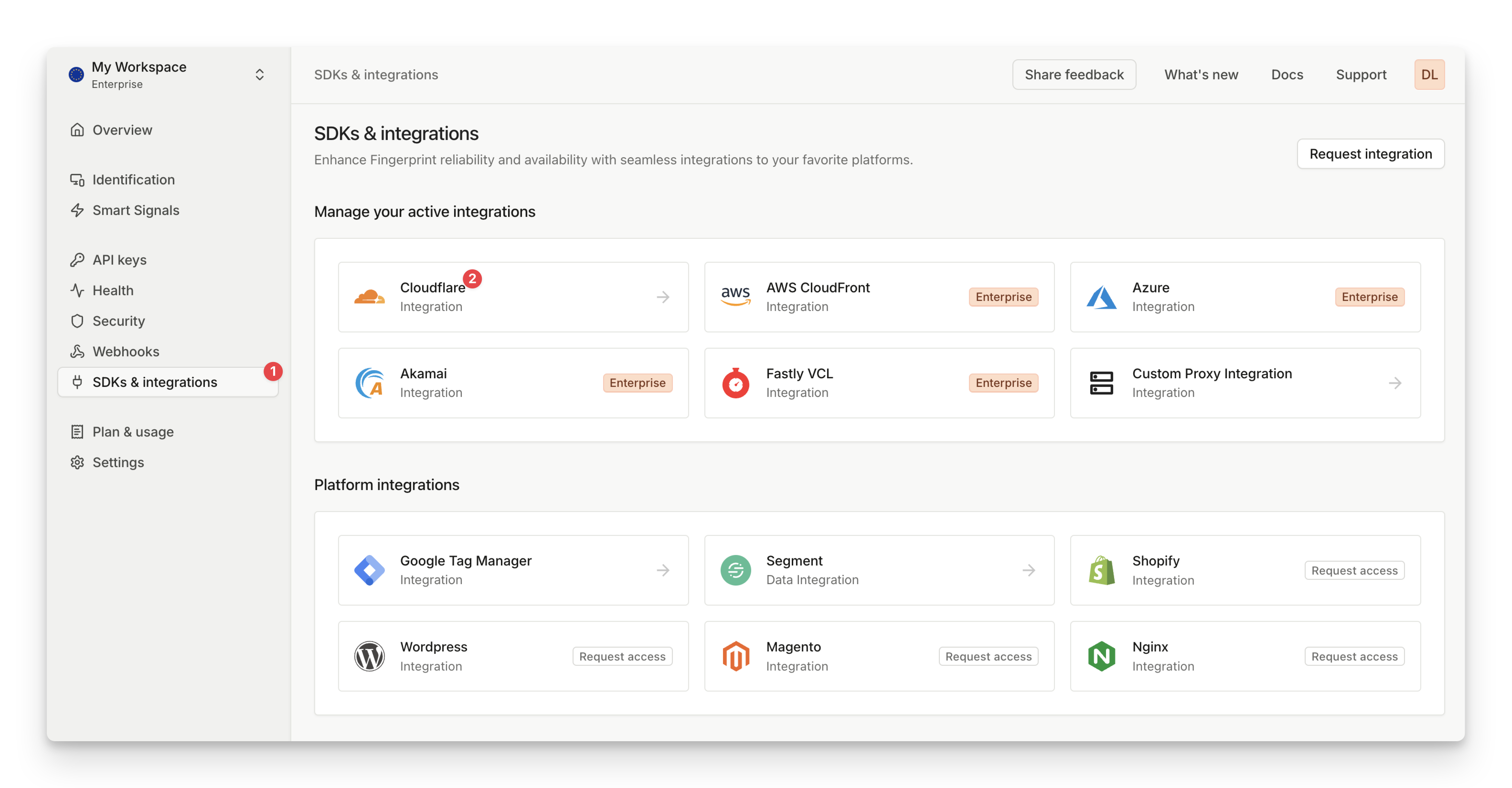
- Go to SDKs & integrations, then select Cloudflare.
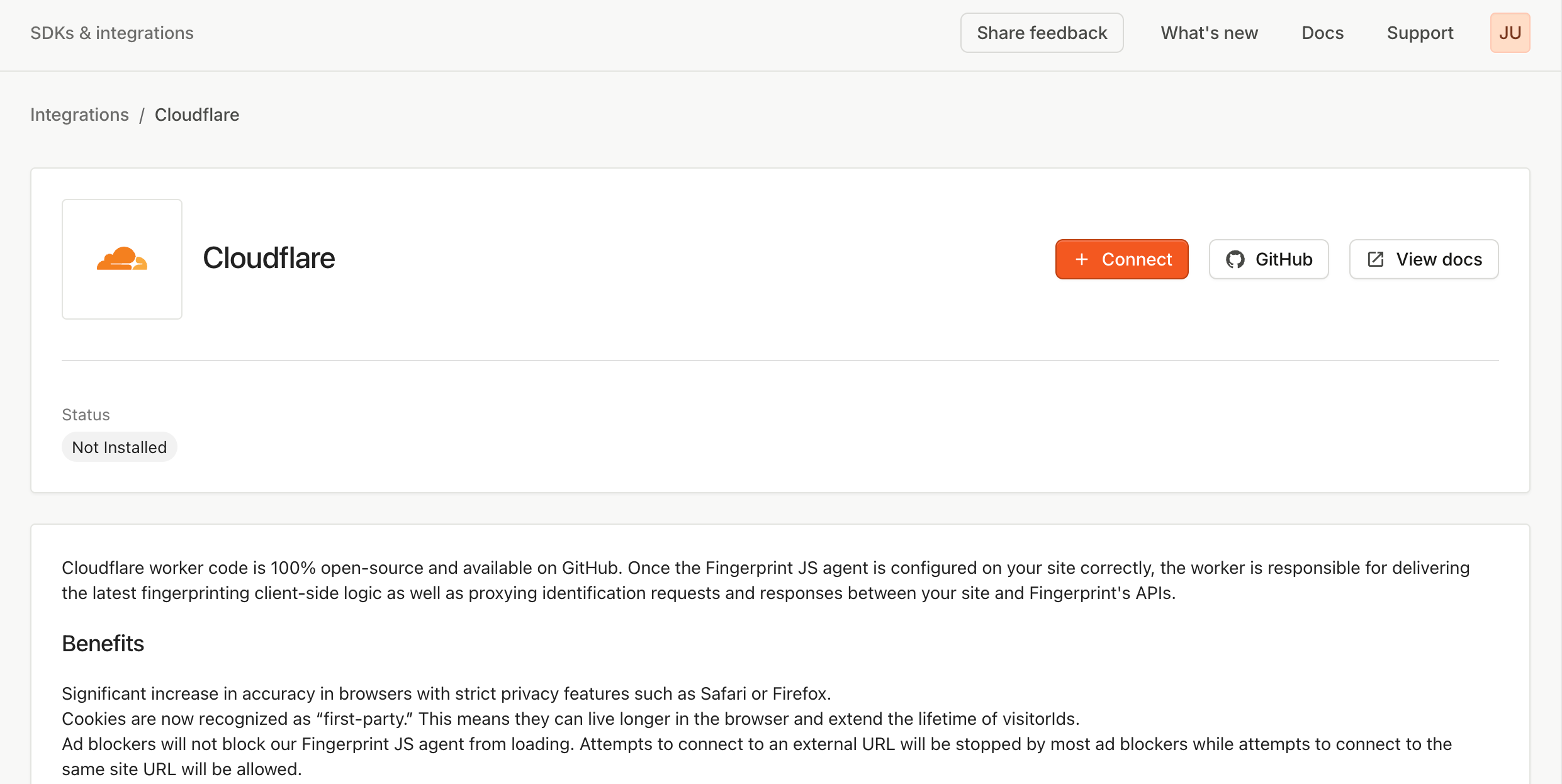
- In the Cloudflare configuration guide, click Connect.
-
Optionally, scope the integration to a specific environment.
- By default, the integration works for all environments in your workspace.
- If you scope the integration to a specific environment, it will only proxy identification requests made with public API keys from that environment.
- Add information about your Cloudflare account.
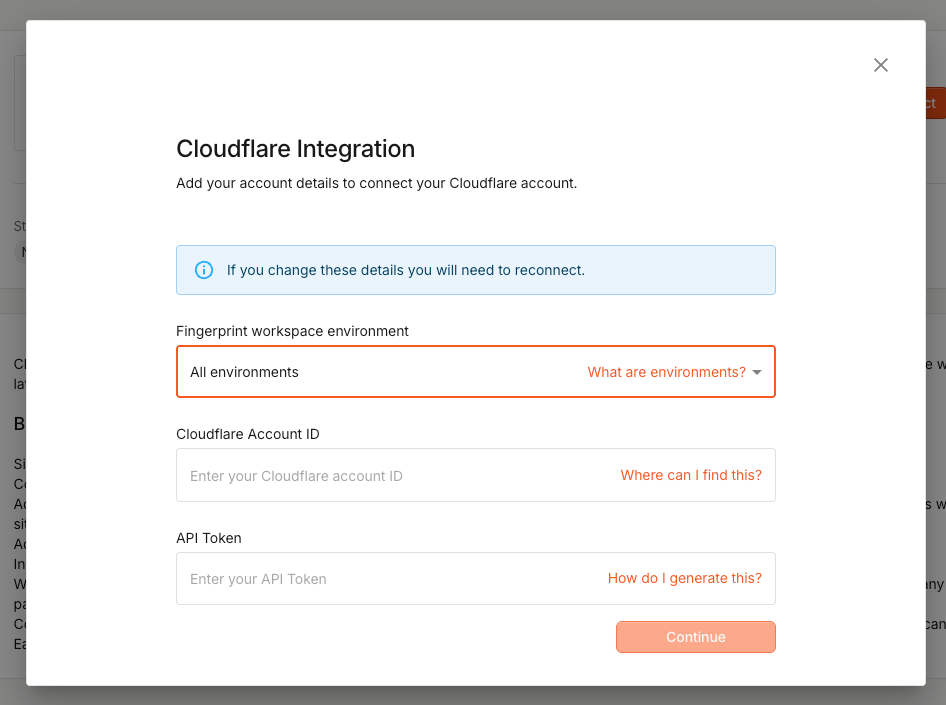
Cloudflare Account ID
The account ID is required to deploy workers. Go to Cloudflare Workers and copy the account ID.Cloudflare API token
The API token is required to deploy workers. Go to the API Tokens page, select Create Custom Token, and follow these steps:- Type
fingerprint.comin the name field - Add the Workers Scripts > Edit account permission
- Add the Workers Routes > Edit zone permission
- Select the account in Account Resources
- Select the website in Zone Resources
- Add IP filtering for
3.23.16.20 - Do not set a TTL
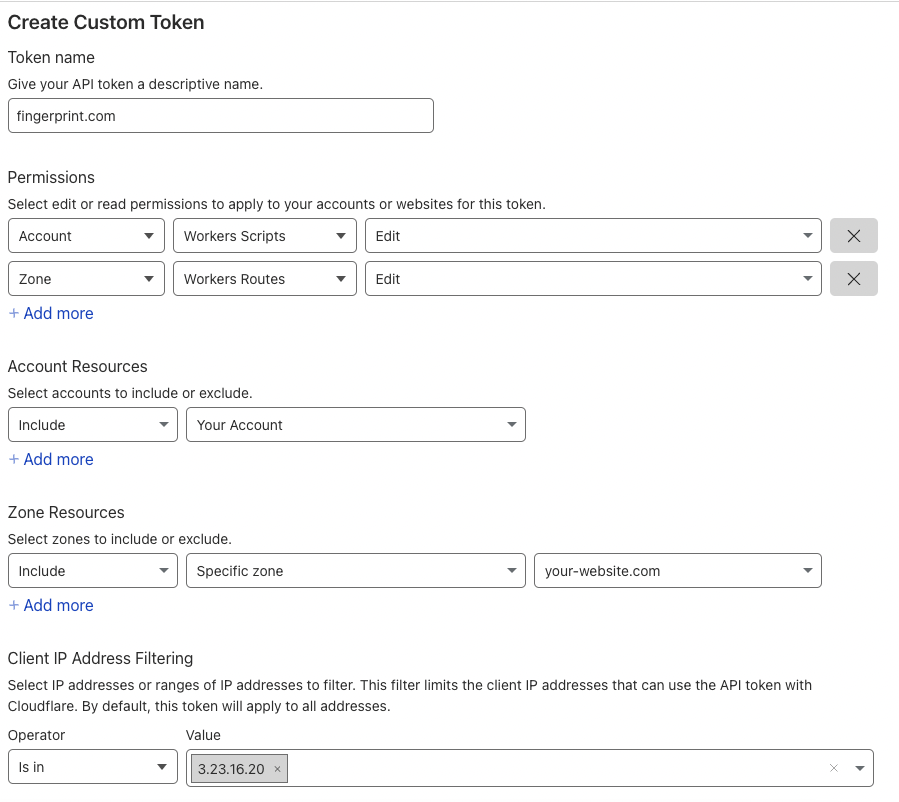
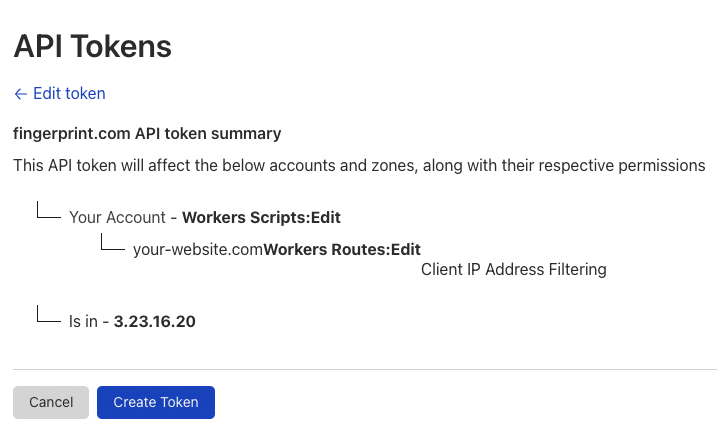
API token safetyWhen creating an API token, grant as few privileges as possible. In the example above, the token can only manage workers in your account. Fingerprint uses your API token only for managing the Fingerprint Cloudflare worker.Fingerprint encrypts customer data, including API tokens and configuration items. Client IP address filtering adds another layer of security. Allowing the Fingerprint Cloudflare service IP ensures the API token can only be used by Fingerprint services.
- After entering the account ID and API token, continue to the next step.
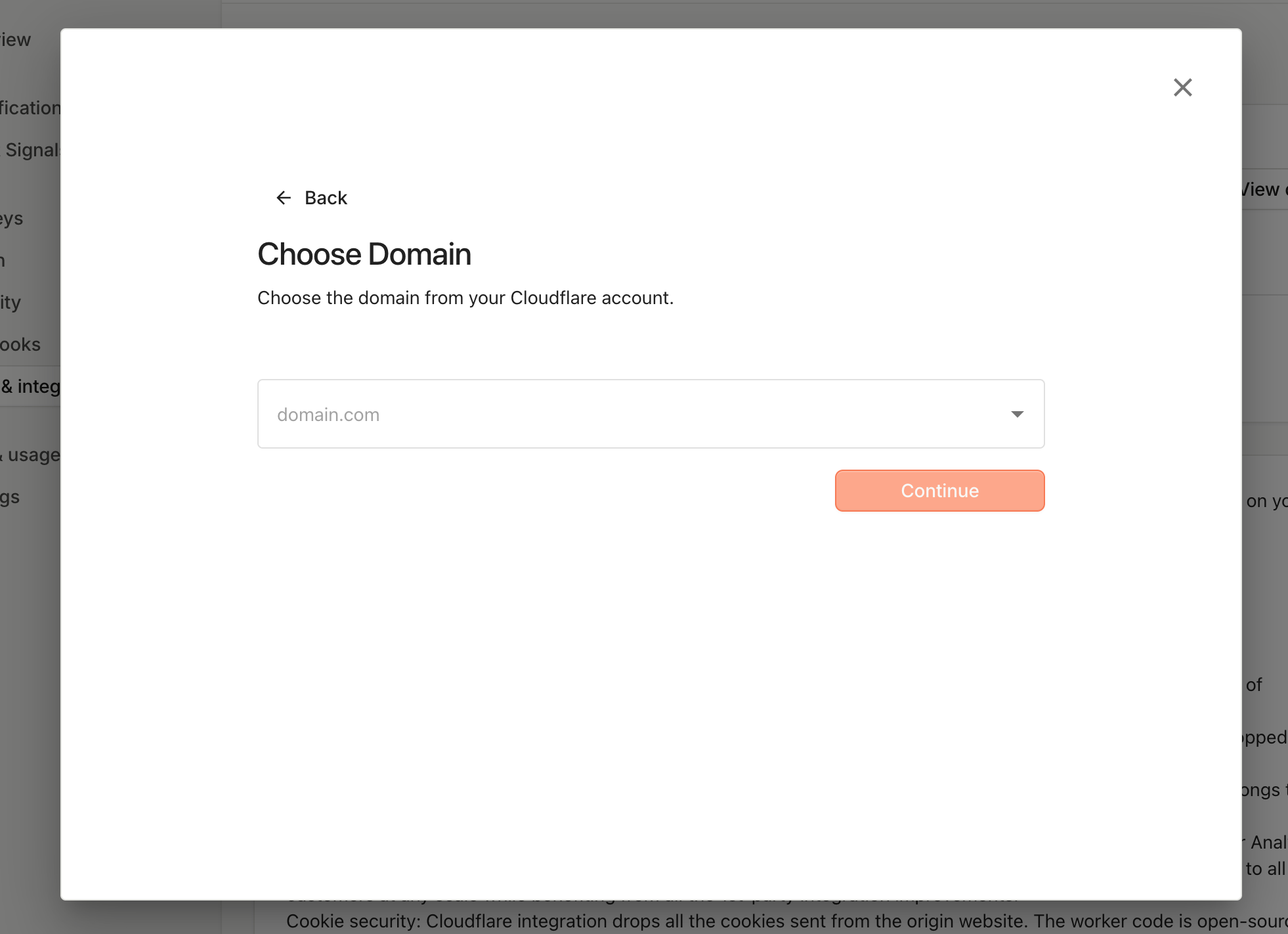
- Select the same domain you used when creating the API token. If you do not see the domain you want to use, contact support.
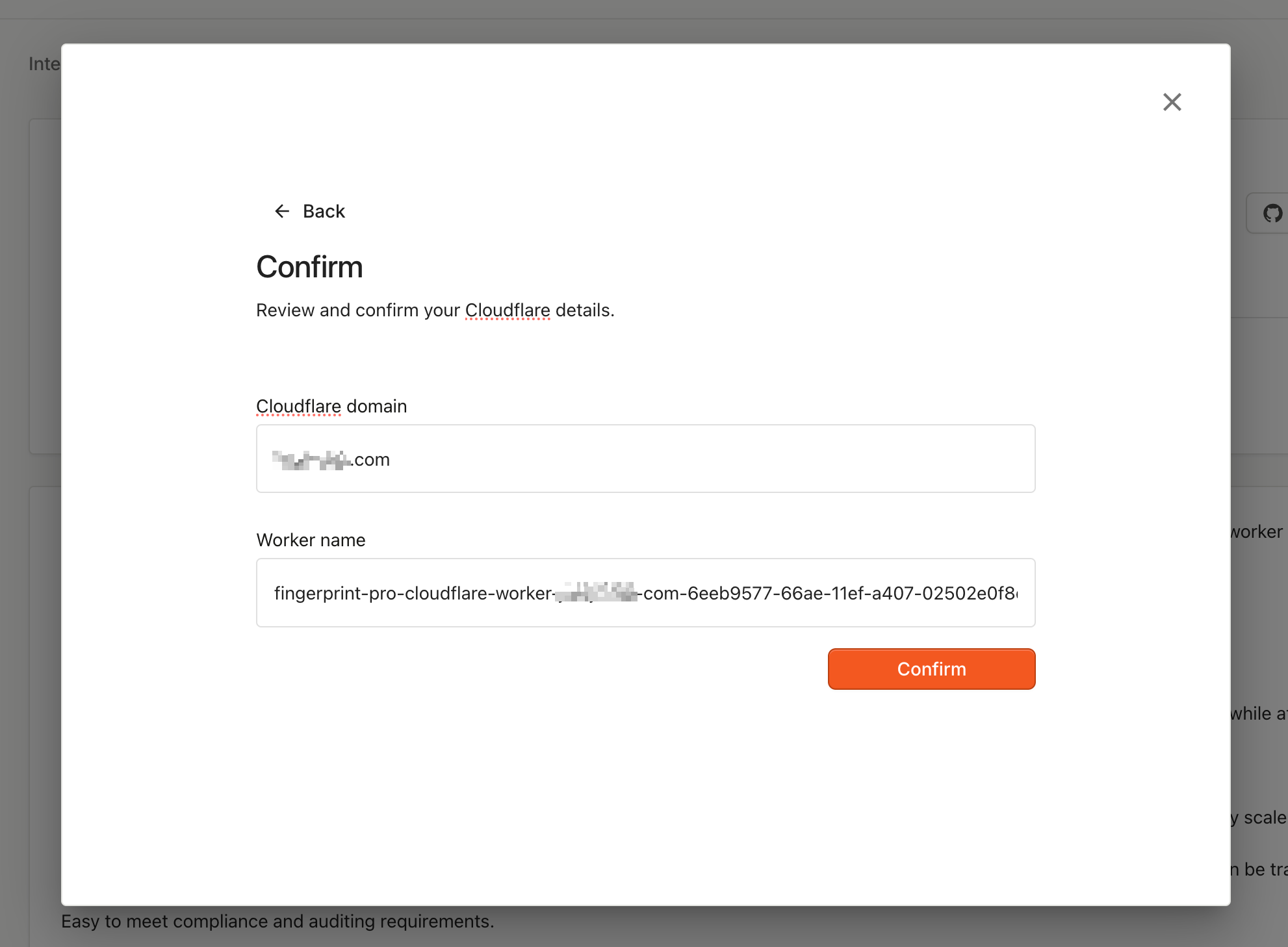
- Confirm the deployment. This process can take several minutes.
fingerprint-cloudflare-worker-random-id. You can see it in the Cloudflare Workers Dashboard.
Step 2: Configure your JavaScript agent
Once the worker is deployed, configure your client-side application to use it. You can always return to SDKs & integrations to get code snippets for different frameworks that match your Cloudflare setup.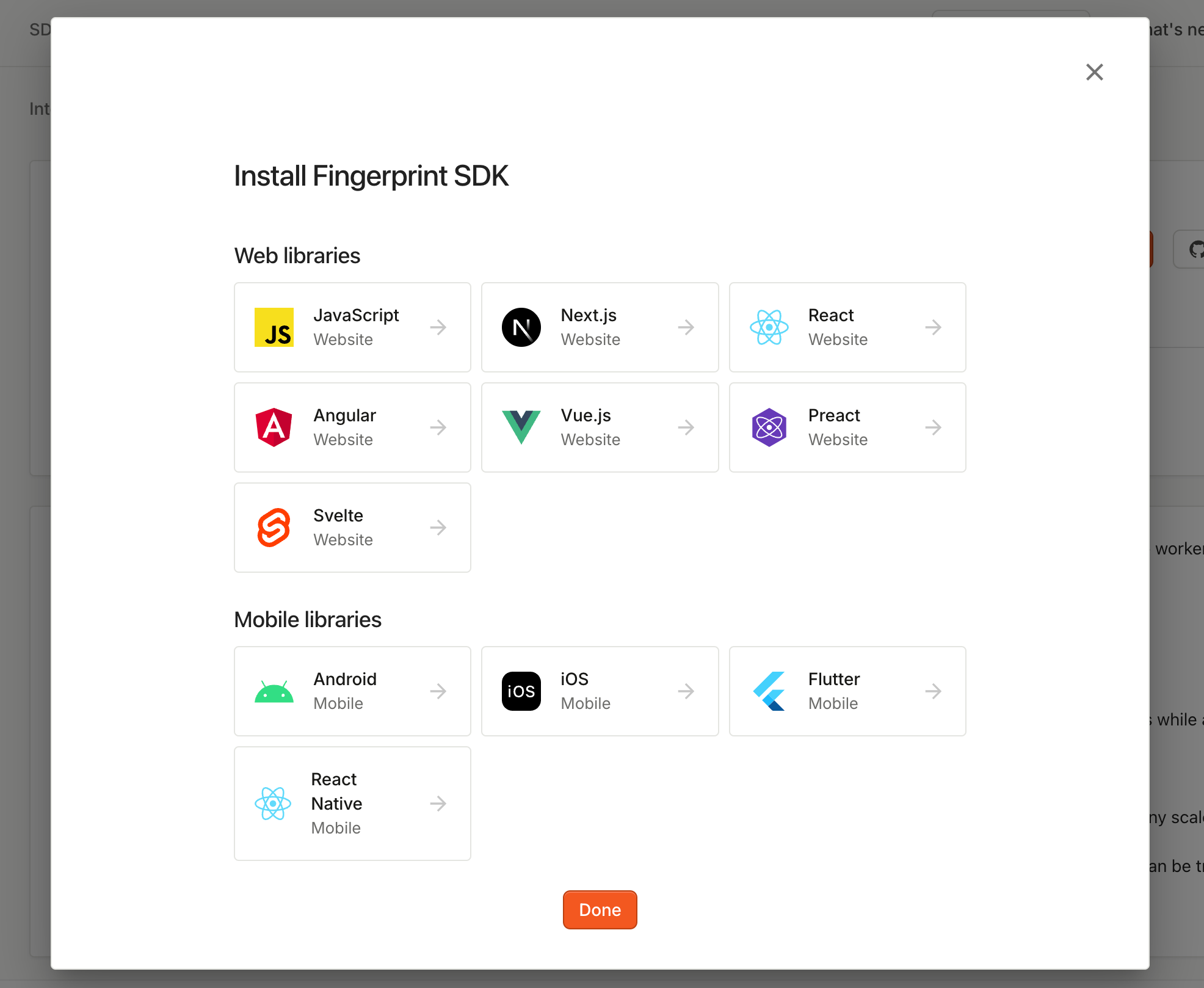
JavaScript agent configuration example
- Include the region in the
endpointsURL query string using the format?region=REGION. ReplaceREGIONwith the region of your application.
Migrating from JavaScript agent v3Cloudflare Proxy Integration remains compatible with JavaScript agent v3, so you can upgrade when it works for your rollout plan.When you migrate to JavaScript agent v4:
- Remove
scriptUrlPatternandendpoint - Replace them with a single
endpointsoption that points to the worker route, for examplehttps://yourwebsite.com/WORKER_PATH/?region=us - See Migrating JavaScript agent from v3 to v4 for more details
Using multiple worker routes
Cloudflare Proxy Integration uses Cloudflare Workers, which supports multiple routes. You can add more routes if you need to, but do not change the original worker route or configuration created by Fingerprint.Monitoring and troubleshooting the integration
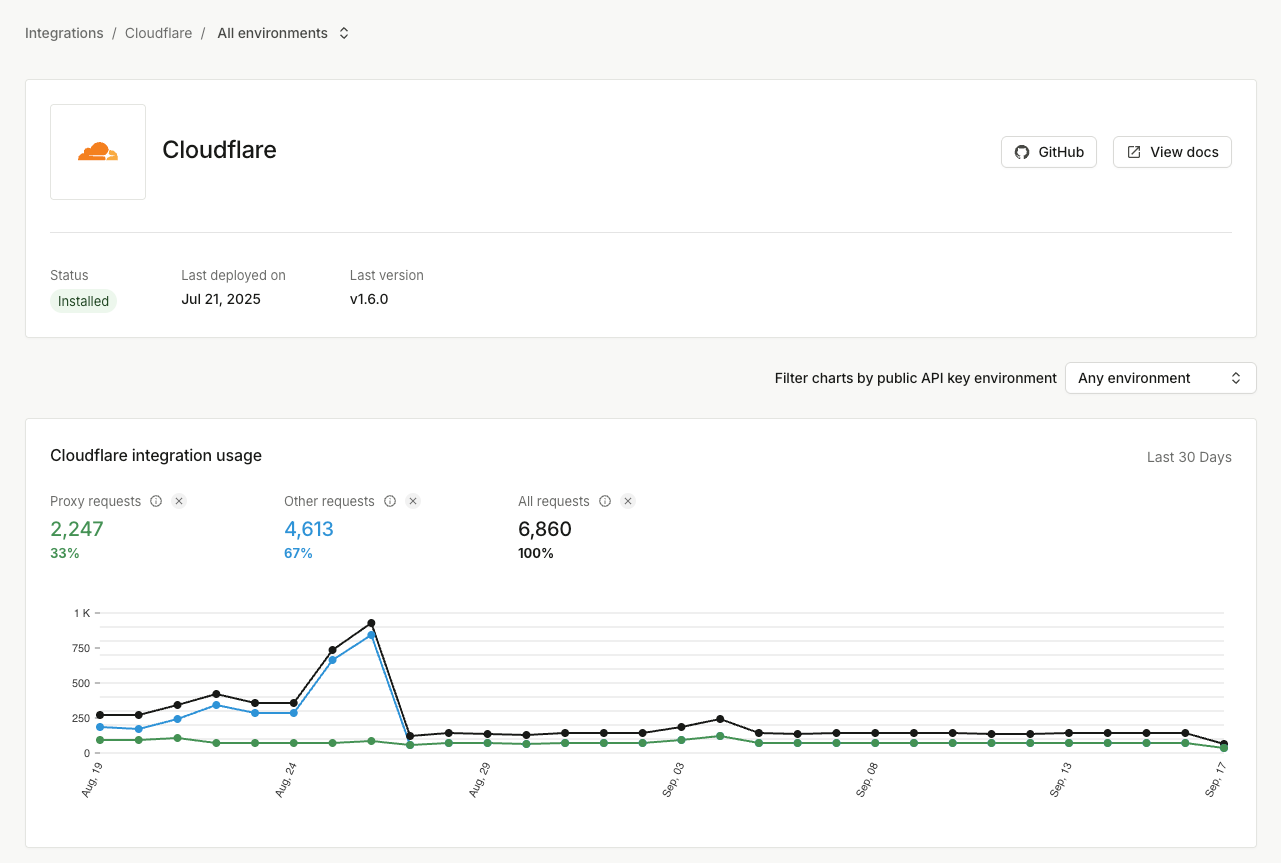
Go to Dashboard > SDKs & integrations > Cloudflare to see the integration status, usage statistics, and configuration. You can monitor:- Whether the integration is up to date
- How many identification requests go through the integration, and how many do not
- The error rate of proxied identification requests, usually caused by a missing or incorrect proxy secret
Updating the Cloudflare token
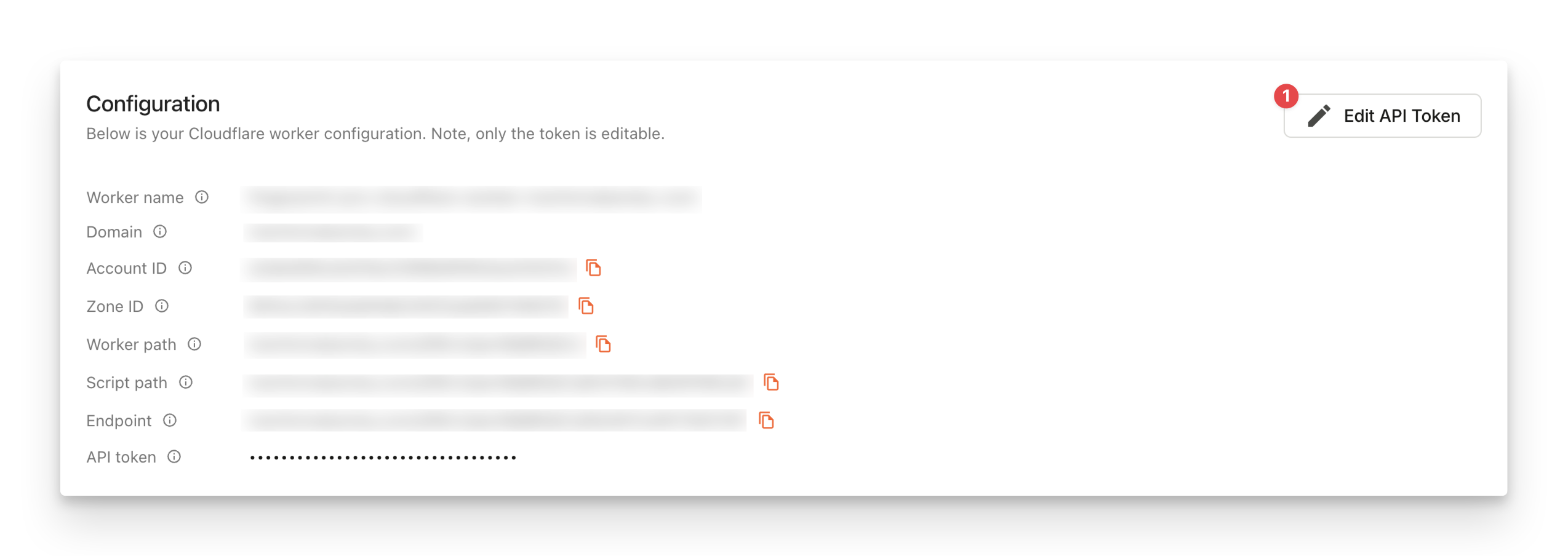
If you accidentally delete the Cloudflare API token you provided to Fingerprint, you can update it in the Fingerprint dashboard.- Go to SDKs & integrations > Cloudflare and click Edit API token
Deleting the integration
If something goes irreversibly wrong with your integration or Cloudflare worker configuration, you can delete everything and create a new integration from scratch.- Make sure your Fingerprint JavaScript agent is not using the integration URLs you are about to delete.
- Go to SDKs & integrations > Cloudflare and click Delete integration at the bottom of the page.
Alternative worker subdomain setup (for DNS-only domains)
The Cloudflare configuration guide above assumes your website is added to Cloudflare and proxied through Cloudflare instead of DNS-only. If your website uses DNS-only mode, the worker is not accessible on the generated path and the provided code snippets do not work.
- Follow the installation steps above to deploy the proxy integration worker in your Cloudflare account.
- Go to your Cloudflare dashboard.
- In the left-hand navigation, click Workers & Pages.
- Click your Fingerprint Cloudflare worker. It will be named like fingerprint-cloudflare-worker-yourwebsite-com.
- At the top, click Settings, then find Domains & Routes.
- Click + Add and select Custom domain.
- Enter a subdomain like
metrics.yourwebsite.comand click Add domain. Avoid terms commonly blocked by ad blockers likefingerprint,fpjs, ortrack.
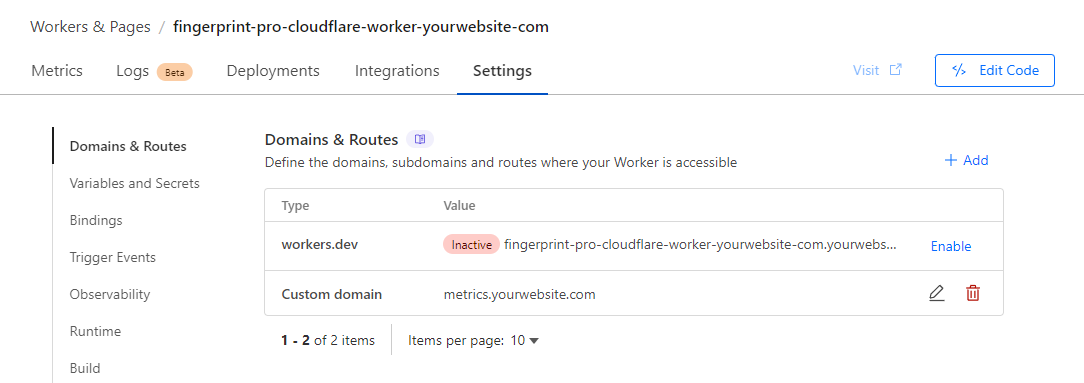
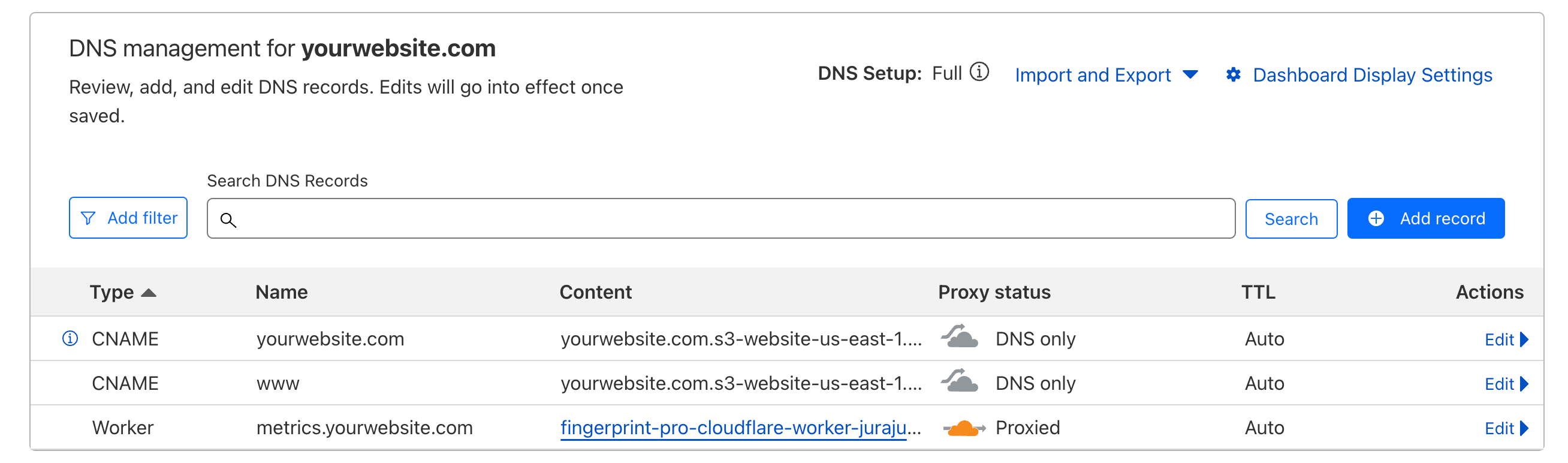
endpoints: https://yourwebsite.com/VWmFUKL1dfIjc8gg/?region=us becomes endpoints: https://metrics.yourwebsite.com/VWmFUKL1dfIjc8gg/?region=us.