

Overview
If you are using an Akamai Proxy Integration with Fingerprint and requests to Fingerprint endpoints start returningHTTP 503, the most common cause is an Origin SSL verification mismatch in your Akamai property configuration.
This guide explains how to confirm the issue and update the relevant Akamai rule so Akamai can successfully connect to the Fingerprint origin.
Symptoms
You may see:503responses from requests routed through Akamai to Fingerprint endpoints.- The issue affects Fingerprint endpoints that are served through the Akamai property rule for Fingerprint.
How to verify the error
If you see this 503 error on any Fingerprint endpoint, copy the Reference ID from the response body that Akamai returned. For example:43.5cb6efc3.1773756189.10ff07a.
- Go to the Akamai Control Center.
- Navigate to Support > Edge Diagnostics.
- In the Popular Tools section, click Translate Error String.
- Paste the Reference ID into the Error reference codes field.
- Click Submit.
- Wait for Akamai to fetch details.
- Click the View document icon for the new item in the table below.
- Check the Reason for failure field.
ERR_NON_SUPERNET_IP or a similar SSL verification error, Akamai cannot connect to the Fingerprint origin.
Resolution
In your Akamai Property Manager, navigate to Fingerprint > Origin for Agent > Origin Behavior > Origin SSL Certificate Verification.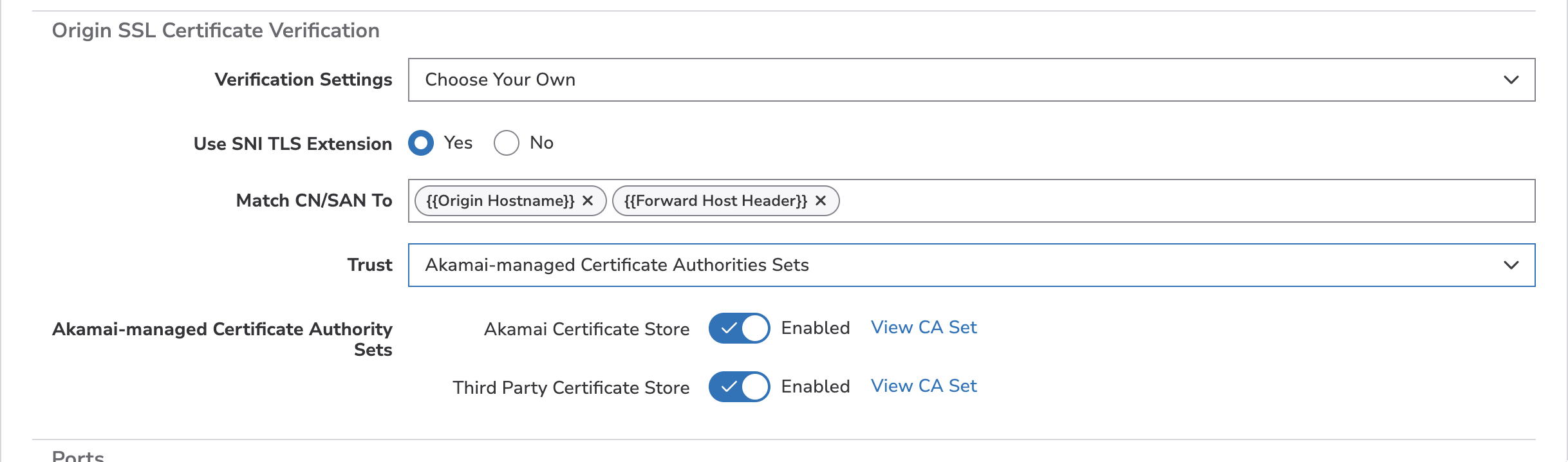
Origin SSL Certificate Verification
- Change the Verification Settings to
Choose Your Own. - Keep Use SNI TLS Extension and Match CA/SAN To as is.
- Change Trust to
Akamai-managed Certificate Authorities Sets. - Select the Akamai Certificate Store and Third Party Certificate Store checkboxes.
- Click Save.
- Agent download
- Browser Cache
- Identification
Resolving Akamai validation errors
When saving your changes, you may encounter the following or similar validation error:Choosing Use Platform Settings for SSL Certificate Verification (in Origin Server) is not compatible with the custom settings you have chosen in Origin Server. Make sure the SSL Certificate Verification settings match in Origin Server.This message means that the Verification Settings value in the Default Rule’s Origin Behavior does not match the value used in your Fingerprint origin rules. Akamai requires the same Verification Settings value across all Origin Behavior rules in the property. To fix the validation error:
- In the Default Rule, open Origin Behavior and note the value of Verification Settings.
- For each Fingerprint origin rule (Agent, Browser Cache, Identification), open Origin Behavior.
- Set Verification Settings in each Fingerprint origin rule to the same value you noted in the Default Rule.
- Save the property.
Third Party, contact Fingerprint support.