> ## Documentation Index
> Fetch the complete documentation index at: https://docs.fingerprint.com/llms.txt
> Use this file to discover all available pages before exploring further.
# Troubleshoot 503 errors in Akamai Proxy Integration
> Fix 503 errors between Akamai and Fingerprint endpoints by aligning Origin SSL verification settings in your Akamai property rules.
## Overview
If you are using an **Akamai Proxy Integration** with Fingerprint and requests to Fingerprint endpoints start returning `HTTP 503`, the most common cause is an Origin SSL verification mismatch in your Akamai property configuration.
This guide explains how to confirm the issue and update the relevant Akamai rule so Akamai can successfully connect to the Fingerprint origin.
## Symptoms
You may see:
* `503` responses from requests routed through Akamai to Fingerprint endpoints.
* The issue affects Fingerprint endpoints that are served through the Akamai property rule for Fingerprint.
## How to verify the error
If you see this 503 error on any Fingerprint endpoint, copy the Reference ID from the response body that Akamai returned. For example: `43.5cb6efc3.1773756189.10ff07a`.
1. Go to the Akamai Control Center.
2. Navigate to **Support** > **Edge Diagnostics**.
3. In the **Popular Tools** section, click **Translate Error String**.
4. Paste the Reference ID into the **Error reference codes** field.
5. Click **Submit**.
6. Wait for Akamai to fetch details.
7. Click the **View document** icon for the new item in the table below.
8. Check the **Reason for failure** field.
If the **Reason for failure** field shows `ERR_NON_SUPERNET_IP` or a similar SSL verification error, Akamai cannot connect to the Fingerprint origin.
## Resolution
In your Akamai Property Manager, navigate to **Fingerprint** > **Origin for Agent** > **Origin Behavior** > **Origin SSL Certificate Verification**.
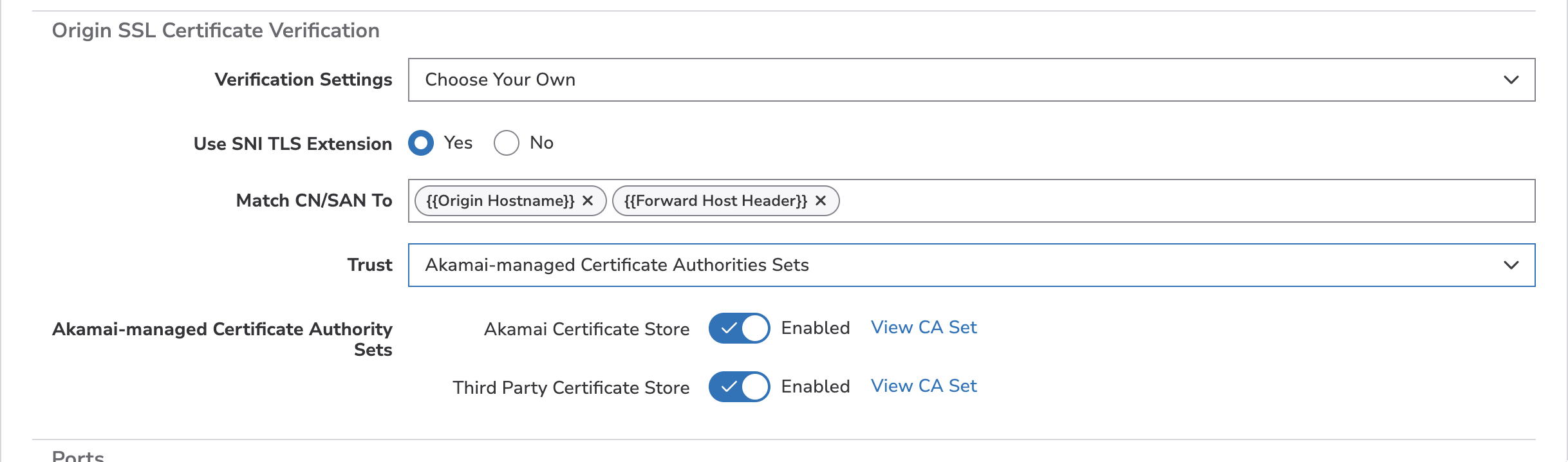 1. Change the **Verification Settings** to `Choose Your Own`.
2. Keep **Use SNI TLS Extension** and **Match CA/SAN To** as is.
3. Change **Trust** to `Akamai-managed Certificate Authorities Sets`.
4. Select the **Akamai Certificate Store** and **Third Party Certificate Store** checkboxes.
5. Click **Save**.
If other endpoints are affected, repeat the steps for each affected endpoint. Fingerprint has 3 endpoints on Akamai:
* Agent download
* Browser Cache
* Identification
### Resolving Akamai validation errors
When saving your changes, you may encounter the following or similar validation error:
> Choosing Use Platform Settings for SSL Certificate Verification (in Origin Server) is not compatible with the custom settings you have chosen in Origin Server. Make sure the SSL Certificate Verification settings match in Origin Server.
This message means that the **Verification Settings** value in the Default Rule's Origin Behavior does not match the value used in your Fingerprint origin rules. Akamai requires the same **Verification Settings** value across all Origin Behavior rules in the property.
To fix the validation error:
1. In the Default Rule, open **Origin Behavior** and note the value of **Verification Settings**.
2. For each Fingerprint origin rule (Agent, Browser Cache, Identification), open **Origin Behavior**.
3. Set **Verification Settings** in each Fingerprint origin rule to the same value you noted in the Default Rule.
4. Save the property.
If the Default Rule's Origin Behavior uses **Verification Settings** set to `Third Party`, contact [Fingerprint support](https://fingerprint.com/support/).
1. Change the **Verification Settings** to `Choose Your Own`.
2. Keep **Use SNI TLS Extension** and **Match CA/SAN To** as is.
3. Change **Trust** to `Akamai-managed Certificate Authorities Sets`.
4. Select the **Akamai Certificate Store** and **Third Party Certificate Store** checkboxes.
5. Click **Save**.
If other endpoints are affected, repeat the steps for each affected endpoint. Fingerprint has 3 endpoints on Akamai:
* Agent download
* Browser Cache
* Identification
### Resolving Akamai validation errors
When saving your changes, you may encounter the following or similar validation error:
> Choosing Use Platform Settings for SSL Certificate Verification (in Origin Server) is not compatible with the custom settings you have chosen in Origin Server. Make sure the SSL Certificate Verification settings match in Origin Server.
This message means that the **Verification Settings** value in the Default Rule's Origin Behavior does not match the value used in your Fingerprint origin rules. Akamai requires the same **Verification Settings** value across all Origin Behavior rules in the property.
To fix the validation error:
1. In the Default Rule, open **Origin Behavior** and note the value of **Verification Settings**.
2. For each Fingerprint origin rule (Agent, Browser Cache, Identification), open **Origin Behavior**.
3. Set **Verification Settings** in each Fingerprint origin rule to the same value you noted in the Default Rule.
4. Save the property.
If the Default Rule's Origin Behavior uses **Verification Settings** set to `Third Party`, contact [Fingerprint support](https://fingerprint.com/support/).