> ## Documentation Index
> Fetch the complete documentation index at: https://docs.fingerprint.com/llms.txt
> Use this file to discover all available pages before exploring further.
# (Beta) Request filtering V2
> Block unwanted identification requests to prevent malicious actors from misusing your Fingerprint public API keys.
New iteration of request filtering gives you more flexibility and control when blocking unwanted identification requests. You have full control over order of execution, and you can create more complex rules by using our flexible expression language.
Request Filtering V2 is currently in **beta**. This will allow us to validate its functionalities and make improvements before full release. If you want to use it and provide feedback, please follow the [migration guide](#beta-access).
# How it works
With expression-based filtering rules, you can **allow** or **deny** any request that matches the **criteria** in the expression. Every rule takes the form of `[allow | deny] if [expression is true]`.
Rules are evaluated **in order they are listed**:
1. Rule expressions will resolve to a boolean that determines if the rule matches or not.
2. The first rule that matches will determine if the request is allowed or denied.
3. If no rules match, request is allowed by default.
# Configuration
Managing of filtering rules is supported in both the Dashboard and via [Management API](/reference/filteringrulesv2controller_create).
Inside the Dashboard, navigate to [**Security**](https://dashboard.fingerprint.com/traffic-rules) in the left-hand menu.
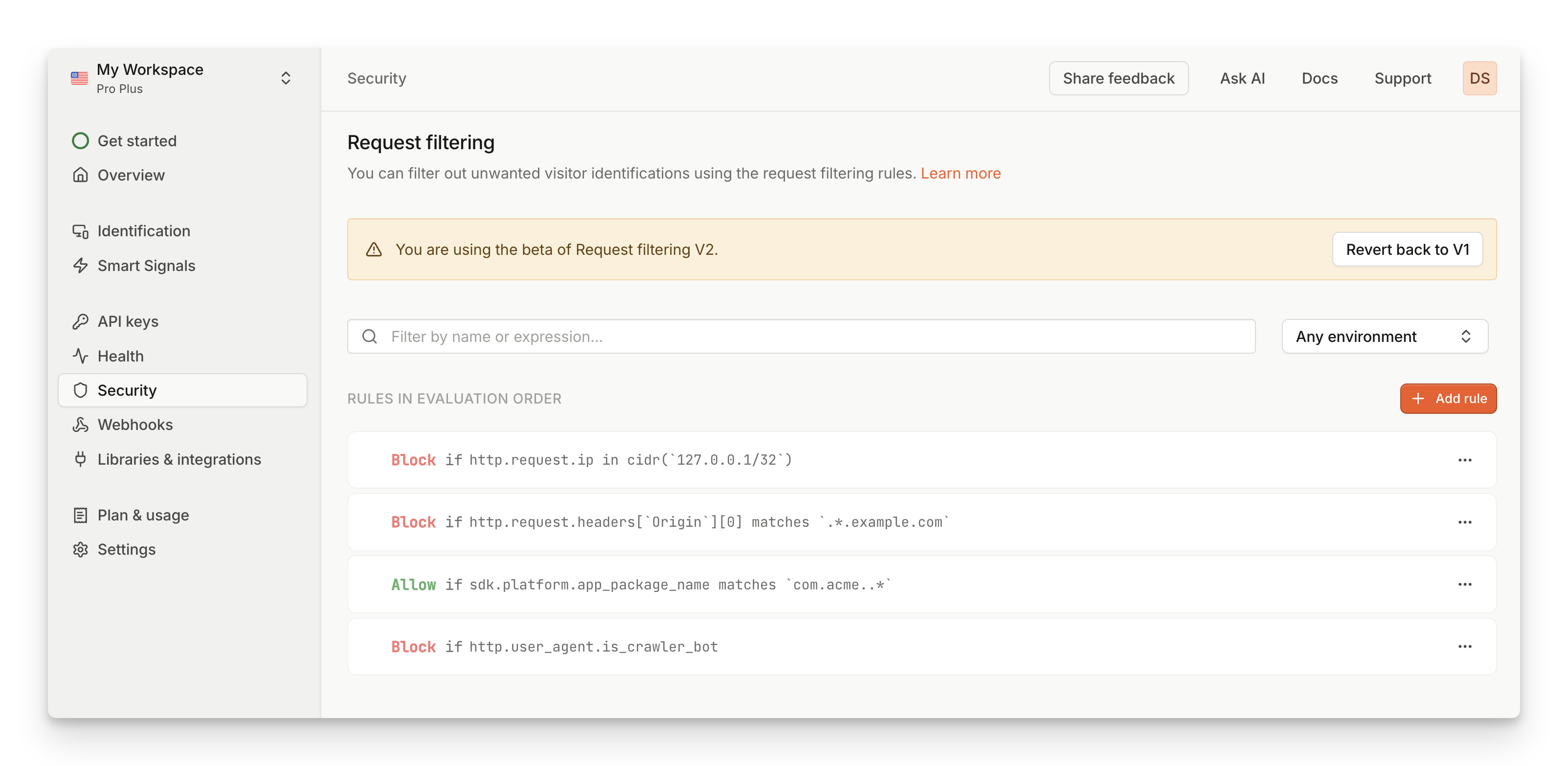 To create a new rule:
1. Click on **Add rule**. New empty rule will be added at the bottom of the page.
2. Select **Allow** or **Deny** if you want this rule to allow or deny the request
3. Write your **Rule expression**. Check some [examples](#examples) or refer to full [reference of expression language](/docs/expression-language-reference).
4. Click on the **Checkmark** to save your rule. If the rule expression is not valid, you will see an error message.
5. To reorder rules, **drag & drop** the rules in the list to your desired order.
During the beta phase, UI options for managing rules are limited. With full release, you can expect a more versatile editor with validation and autocomplete.
# Examples
Here are some examples of most common use cases which should cover all functionalities from the old version of request filtering rules. Check out **Expression language [reference](/docs/expression-language-reference)** for full list of available data points, operators and functions.
### Domain filtering
Domains are accessible in the `Origin` request header.
* **Allow** requests from **subdomain.example.com**
* `[allow] http.request.headers['Origin'][0] == 'https://subdomain.example.com'`
### Network filtering
IP address is available in `http.request.ip`. It is a special type and needs to be compared to a valid CIDR notation.
* **Allow** requests from **123.0.0.1**
* `[allow] http.request.ip in cidr('123.0.0.1/32')`
* **Deny** requests from **123.0.0.1/16**
* `[deny] http.request.ip in cidr('123.0.0.1/16')`
### Mobile app filtering
Bundle identifiers for mobile apps are available in `sdk.platform.app_package_name`.
* **Allow** requests from **com.acme.default**
* `[allow] sdk.platform.app_package_name == 'com.acme.default'`
### Request header filtering
Request headers are available in `http.request.headers` and will contain any custom headers you're sending.
* **Allow** requests from testing environments
* `[allow] http.request.headers['X-ENV'] == 'test'`
* **Deny** requests referred from example.com
* `[deny] http.request.headers['Referer'] contains 'example.com'`
### Bots filtering
Requests identified as bots have boolean flags exposed in `http.user_agent` map.
* **Allow** requests from **AI bots**
* `[allow] http.user_agent.is_ai_bot`
* **Deny** requests from **crawler bots**
* `[deny] http.user_agent.is_crawler_bot`
### Regular expressions
You can use [regular expressions](https://github.com/google/re2/wiki/Syntax) to search for string values that match a given pattern. When using regular expression, rule needs to use `matches` keyword, and the pattern string needs to be enclosed using backticks (`` ` ``) instead of regular quotation marks.
* **Deny** requests from any subdomain on \***.example.com**
* `` [deny] http.request.headers['Origin'][0] matches `^https://\S+\.example\.com$` ``
* **Allow** requests from all apps with root identifier **com.acme.**\*
* `` [deny] sdk.platform.app_package_name matches `^com\.acme\..*$` ``
### Multiple conditions
With logical operators, you can chain multiple conditions into a single expression.
Use the `&&` operator to indicate **AND** operator, and `||` operator to indicate **OR** operator.
* **Deny** requests from **specific IP address on a specific domain**
* `[deny] http.request.ip in cidr('123.0.0.1/32') && http.request.headers['Origin'][0] == 'https://example.com'`
* **Deny** requests from **either AI or crawler bots**
* `[deny] http.user_agent.is_crawler_bot || http.user_agent.is_ai_bot`
## Limitations
The maximum number of request filtering rules on the web is defined by [Account limits](/docs/billing#account-limits). If you need more request filtering rules, please reach out to our [support team](https://fingerprint.com/support/).
In addition, there are additional limitations regarding specific rule expressions:
* Max rule expression length: 1024 characters
* Max number of regular expression patterns allowed in a single expression: 10
# Beta access
Request filtering V2 is currently in **beta**, which means that we are still refining the scope and functionalities. If you want access to the flexibility and control the new system offers with expression-based rules, you can contact support to enable you access to Request Filtering V2.
## Migration steps
1. Once you have access, open the Dashboard and navigate to [**Security**](https://dashboard.fingerprint.com//traffic-rules).
2. Click on **Try out V2**. This will prompt you to confirm the migration process.
3. Once migration is complete, all **settings from V1 will be copied to V2**.
4. Enjoy the flexibility of new filtering rules!
You can undo the migration in case you didn't like the new system.
1. Click on **Switch back to V1**. This will prompt you to confirm rolling back to previous version.
2. Your settings will be **restored to the moment before you migrated to V2**. This means any changes you made in V2 will be discarded.
3. If you did revert back, please provide some feedback on how we can improve things.
***
[Network request filtering](/docs/network-request-filtering)
To create a new rule:
1. Click on **Add rule**. New empty rule will be added at the bottom of the page.
2. Select **Allow** or **Deny** if you want this rule to allow or deny the request
3. Write your **Rule expression**. Check some [examples](#examples) or refer to full [reference of expression language](/docs/expression-language-reference).
4. Click on the **Checkmark** to save your rule. If the rule expression is not valid, you will see an error message.
5. To reorder rules, **drag & drop** the rules in the list to your desired order.
During the beta phase, UI options for managing rules are limited. With full release, you can expect a more versatile editor with validation and autocomplete.
# Examples
Here are some examples of most common use cases which should cover all functionalities from the old version of request filtering rules. Check out **Expression language [reference](/docs/expression-language-reference)** for full list of available data points, operators and functions.
### Domain filtering
Domains are accessible in the `Origin` request header.
* **Allow** requests from **subdomain.example.com**
* `[allow] http.request.headers['Origin'][0] == 'https://subdomain.example.com'`
### Network filtering
IP address is available in `http.request.ip`. It is a special type and needs to be compared to a valid CIDR notation.
* **Allow** requests from **123.0.0.1**
* `[allow] http.request.ip in cidr('123.0.0.1/32')`
* **Deny** requests from **123.0.0.1/16**
* `[deny] http.request.ip in cidr('123.0.0.1/16')`
### Mobile app filtering
Bundle identifiers for mobile apps are available in `sdk.platform.app_package_name`.
* **Allow** requests from **com.acme.default**
* `[allow] sdk.platform.app_package_name == 'com.acme.default'`
### Request header filtering
Request headers are available in `http.request.headers` and will contain any custom headers you're sending.
* **Allow** requests from testing environments
* `[allow] http.request.headers['X-ENV'] == 'test'`
* **Deny** requests referred from example.com
* `[deny] http.request.headers['Referer'] contains 'example.com'`
### Bots filtering
Requests identified as bots have boolean flags exposed in `http.user_agent` map.
* **Allow** requests from **AI bots**
* `[allow] http.user_agent.is_ai_bot`
* **Deny** requests from **crawler bots**
* `[deny] http.user_agent.is_crawler_bot`
### Regular expressions
You can use [regular expressions](https://github.com/google/re2/wiki/Syntax) to search for string values that match a given pattern. When using regular expression, rule needs to use `matches` keyword, and the pattern string needs to be enclosed using backticks (`` ` ``) instead of regular quotation marks.
* **Deny** requests from any subdomain on \***.example.com**
* `` [deny] http.request.headers['Origin'][0] matches `^https://\S+\.example\.com$` ``
* **Allow** requests from all apps with root identifier **com.acme.**\*
* `` [deny] sdk.platform.app_package_name matches `^com\.acme\..*$` ``
### Multiple conditions
With logical operators, you can chain multiple conditions into a single expression.
Use the `&&` operator to indicate **AND** operator, and `||` operator to indicate **OR** operator.
* **Deny** requests from **specific IP address on a specific domain**
* `[deny] http.request.ip in cidr('123.0.0.1/32') && http.request.headers['Origin'][0] == 'https://example.com'`
* **Deny** requests from **either AI or crawler bots**
* `[deny] http.user_agent.is_crawler_bot || http.user_agent.is_ai_bot`
## Limitations
The maximum number of request filtering rules on the web is defined by [Account limits](/docs/billing#account-limits). If you need more request filtering rules, please reach out to our [support team](https://fingerprint.com/support/).
In addition, there are additional limitations regarding specific rule expressions:
* Max rule expression length: 1024 characters
* Max number of regular expression patterns allowed in a single expression: 10
# Beta access
Request filtering V2 is currently in **beta**, which means that we are still refining the scope and functionalities. If you want access to the flexibility and control the new system offers with expression-based rules, you can contact support to enable you access to Request Filtering V2.
## Migration steps
1. Once you have access, open the Dashboard and navigate to [**Security**](https://dashboard.fingerprint.com//traffic-rules).
2. Click on **Try out V2**. This will prompt you to confirm the migration process.
3. Once migration is complete, all **settings from V1 will be copied to V2**.
4. Enjoy the flexibility of new filtering rules!
You can undo the migration in case you didn't like the new system.
1. Click on **Switch back to V1**. This will prompt you to confirm rolling back to previous version.
2. Your settings will be **restored to the moment before you migrated to V2**. This means any changes you made in V2 will be discarded.
3. If you did revert back, please provide some feedback on how we can improve things.
***
[Network request filtering](/docs/network-request-filtering)