> ## Documentation Index
> Fetch the complete documentation index at: https://docs.fingerprint.com/llms.txt
> Use this file to discover all available pages before exploring further.
# Request filtering for websites
To prevent malicious actors from misusing your public API key, you can [filter out unwanted identification requests](/docs/request-filtering). These requests are not billed and will receive an error instead of the identification result.
This page covers filtering requests made from web browsers. You can filter requests by **website origin** or **HTTP headers**. To block requests from mobile apps, see [Request filtering for mobile apps](/docs/mobile-app-filtering).
## Configuration
Inside the Dashboard, navigate to **Security** in the left-hand menu.
### Filter by website origin
You can create a *blocklist* or *allowlist* of specific origins.
* *Allowlist*: If you only need to use your public API key on a few origins, you should allow only those origins and block all others.
* *Blocklist*: If you need to use your public API key on many origins, you can choose to only block specific origins you suspect might be stealing your API key.
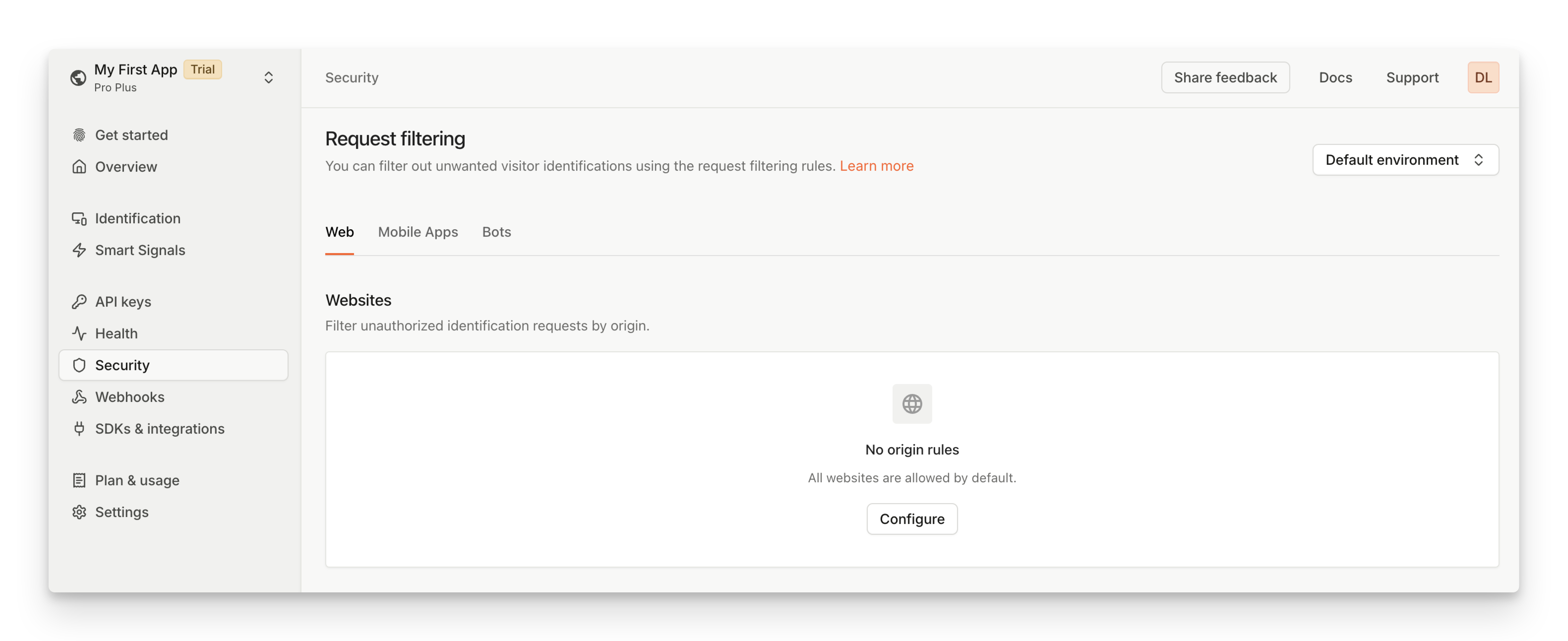 To filter requests by origin:
1. Navigate to the **[Security](https://dashboard.fingerprint.com/traffic-rules)** > **Web**.
2. Under **Websites**, click **Configure**.
3. To create an *Allowlist*, set **Default behavior** to `Forbid all besides origins listed below`. Then fill in the **Exceptions** field with your list of allowed origins.
4. Alternatively, to create a *Blocklist*, set **Default behavior** to `Allow all besides origins listed below`. Then fill in the **Exceptions** field with your list of blocked origins.
5. Click **Save**.
To filter requests by origin:
1. Navigate to the **[Security](https://dashboard.fingerprint.com/traffic-rules)** > **Web**.
2. Under **Websites**, click **Configure**.
3. To create an *Allowlist*, set **Default behavior** to `Forbid all besides origins listed below`. Then fill in the **Exceptions** field with your list of allowed origins.
4. Alternatively, to create a *Blocklist*, set **Default behavior** to `Allow all besides origins listed below`. Then fill in the **Exceptions** field with your list of blocked origins.
5. Click **Save**.
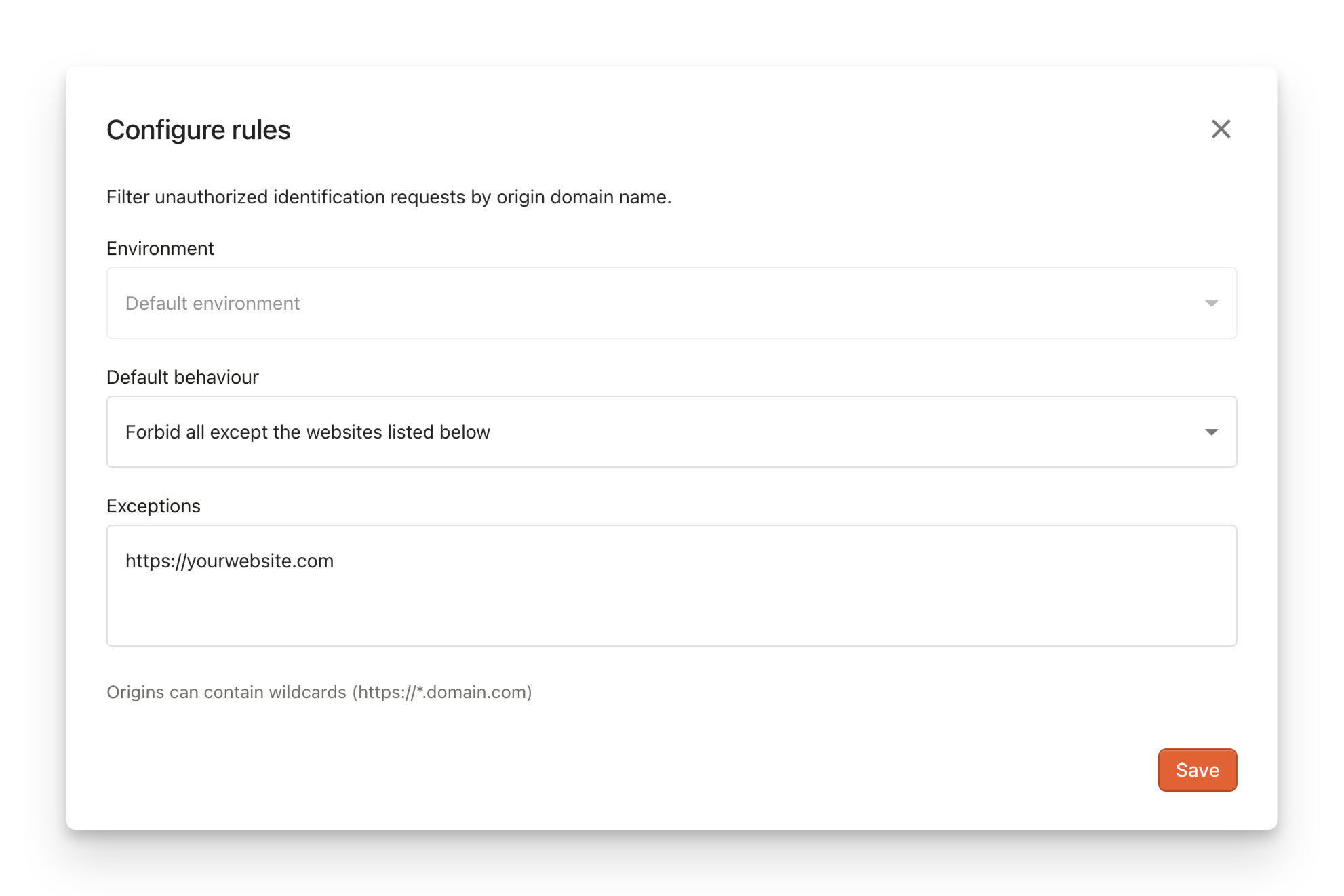 A website origin is defined by the scheme and the domain name of the URL used to access it.\
You can use the wildcard character (\*) as a subdomain name.
### Filter by HTTP header
You can filter out identification requests by HTTP headers. Requests you might want to filter out include server-side rendering applications, crawlers, search indexing bots, or website availability monitors.
To filter requests by HTTP header:
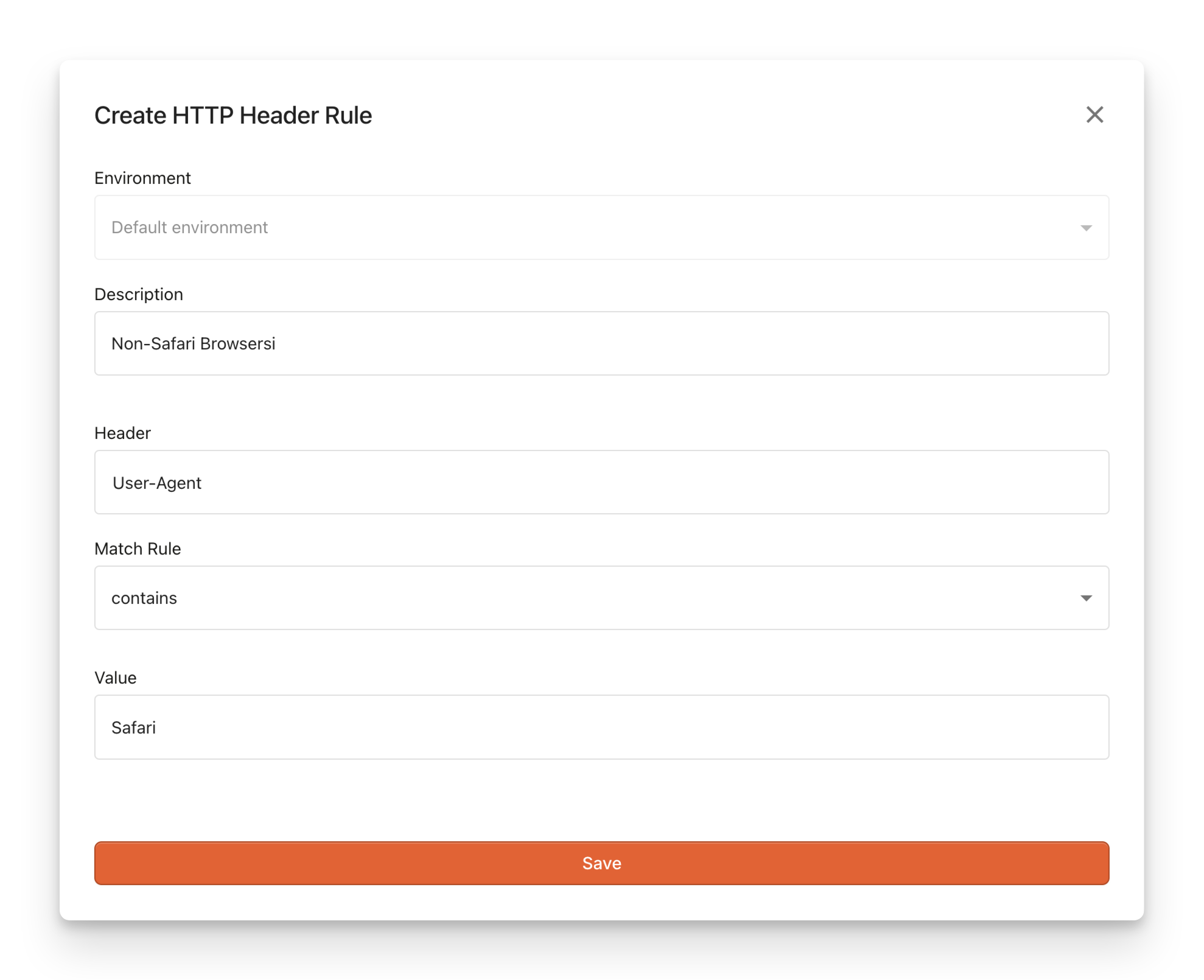
1. Navigate to the **[Security](https://dashboard.fingerprint.com/traffic-rules)** > **Web**.
2. Under **Forbidden HTTP Headers**, click **Add rule**.
3. Fill in the **Header** name.
4. Choose your **Match Rule**.
5. Fill in the **Value**. You can use regular expressions.
A website origin is defined by the scheme and the domain name of the URL used to access it.\
You can use the wildcard character (\*) as a subdomain name.
### Filter by HTTP header
You can filter out identification requests by HTTP headers. Requests you might want to filter out include server-side rendering applications, crawlers, search indexing bots, or website availability monitors.
To filter requests by HTTP header:
1. Navigate to the **[Security](https://dashboard.fingerprint.com/traffic-rules)** > **Web**.
2. Under **Forbidden HTTP Headers**, click **Add rule**.
3. Fill in the **Header** name.
4. Choose your **Match Rule**.
5. Fill in the **Value**. You can use regular expressions.
 **Regular expressions in header rules**
The regular expression (regex) match rule is defined by the [RE2](https://github.com/google/re2) notation. To make sure you are using the correct notation, you can:
1. Go to [regex101.com](https://regex101.com/).
2. Select the **Golang Flavor** option on the left.
3. Debug the regular expression to suit your needs.
4. Copy the **Regular expression** and paste it into the **Value** field in the rule form as-is.
## Limitations
* The maximum number of request filtering rules on the web is defined by [Account limits](/docs/billing#account-limits). If you need more request filtering rules, please reach out to our [support team](https://fingerprint.com/support/).
* It can take up to 5 minutes to start filtering incoming requests after creating or editing an origin or header rule.
## Rule Priority and Examples
If *any* rule matches, the request filtering processing stops, and the result is immediately applied. This has clear interaction when only **Forbidden Origins** rules are set up but might be less clear when both **Allowed Origins** and **Forbidden HTTP Headers** rules are involved. The basic precedence is as follows:
1. **Allowed/Forbidden Origins** rules are checked **first**.
2. **Forbidden HTTP Headers** rules are checked **second**.
Let us illustrate that interaction on a more specific example.
### Rules Configuration
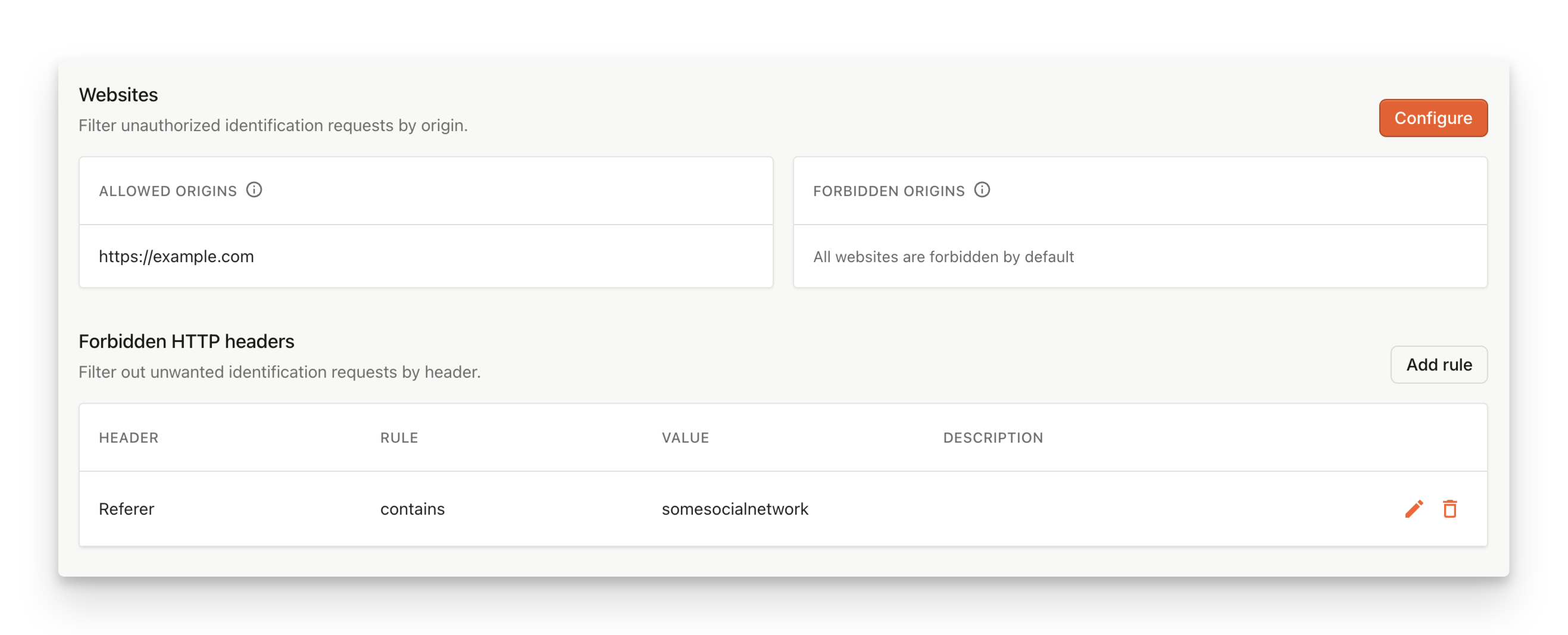
We'll configure two different rules
* one is going to whitelist our own website (`https://example.com`) and
* the second one is going to further prohibit any headers coming from `somesocialnetwork` **Referer**.
**Regular expressions in header rules**
The regular expression (regex) match rule is defined by the [RE2](https://github.com/google/re2) notation. To make sure you are using the correct notation, you can:
1. Go to [regex101.com](https://regex101.com/).
2. Select the **Golang Flavor** option on the left.
3. Debug the regular expression to suit your needs.
4. Copy the **Regular expression** and paste it into the **Value** field in the rule form as-is.
## Limitations
* The maximum number of request filtering rules on the web is defined by [Account limits](/docs/billing#account-limits). If you need more request filtering rules, please reach out to our [support team](https://fingerprint.com/support/).
* It can take up to 5 minutes to start filtering incoming requests after creating or editing an origin or header rule.
## Rule Priority and Examples
If *any* rule matches, the request filtering processing stops, and the result is immediately applied. This has clear interaction when only **Forbidden Origins** rules are set up but might be less clear when both **Allowed Origins** and **Forbidden HTTP Headers** rules are involved. The basic precedence is as follows:
1. **Allowed/Forbidden Origins** rules are checked **first**.
2. **Forbidden HTTP Headers** rules are checked **second**.
Let us illustrate that interaction on a more specific example.
### Rules Configuration
We'll configure two different rules
* one is going to whitelist our own website (`https://example.com`) and
* the second one is going to further prohibit any headers coming from `somesocialnetwork` **Referer**.
 ### Result
Because the **Allowed Origins** rule has strict precedence, we will see the following result.
| Origin | Headers | Result |
| :-------------------- | :----------------------------- | :---------- |
| `https://example.com` | Referer: somesocialnetwork.com | **`ALLOW`** |
As you can see on the example, the request came through because the **Allow Origins** rule was applied first, and that stopped the processing despite having somesocialnetwork.com as a **Referer**.
### Result
Because the **Allowed Origins** rule has strict precedence, we will see the following result.
| Origin | Headers | Result |
| :-------------------- | :----------------------------- | :---------- |
| `https://example.com` | Referer: somesocialnetwork.com | **`ALLOW`** |
As you can see on the example, the request came through because the **Allow Origins** rule was applied first, and that stopped the processing despite having somesocialnetwork.com as a **Referer**.