> ## Documentation Index
> Fetch the complete documentation index at: https://docs.fingerprint.com/llms.txt
> Use this file to discover all available pages before exploring further.
# Manually updating your AWS CloudFront integration Lambda function
> If Fingerprint is not able to deliver updates to your CloudFront integration for any reason, you need to update your Lambda function manually with every functional product update. Missing updates can lead to a decrease in accuracy or disable visitor identification completely.
To update your Lambda function manually, please follow the steps below.
## 1. Verify configuration variables in AWS Secrets Manager
To function correctly, the Lambda function needs access to these configuration variables in your AWS Secrets Manager:
* `FPJS_BEHAVIOR_PATH`
* `FPJS_PRE_SHARED_SECRET`
If your current version of the lambda function is old, you might not have all the variables required by the latest version.
If something is missing, follow the [Cloudfront integration guide ](/docs/cloudfront-proxy-integration-v2)(Steps 1,2,3) to add the missing configuration variables to your AWS Secrets Manager.
## 2. Update the Lambda function
1. Sign in to your [AWS console](https://console.aws.amazon.com/).
2. Go to **AWS Lambda**.
3. Open your CloudFront integration lambda function, probably named **fingerprint-pro-cloudfront-lambda-some-random-id**.
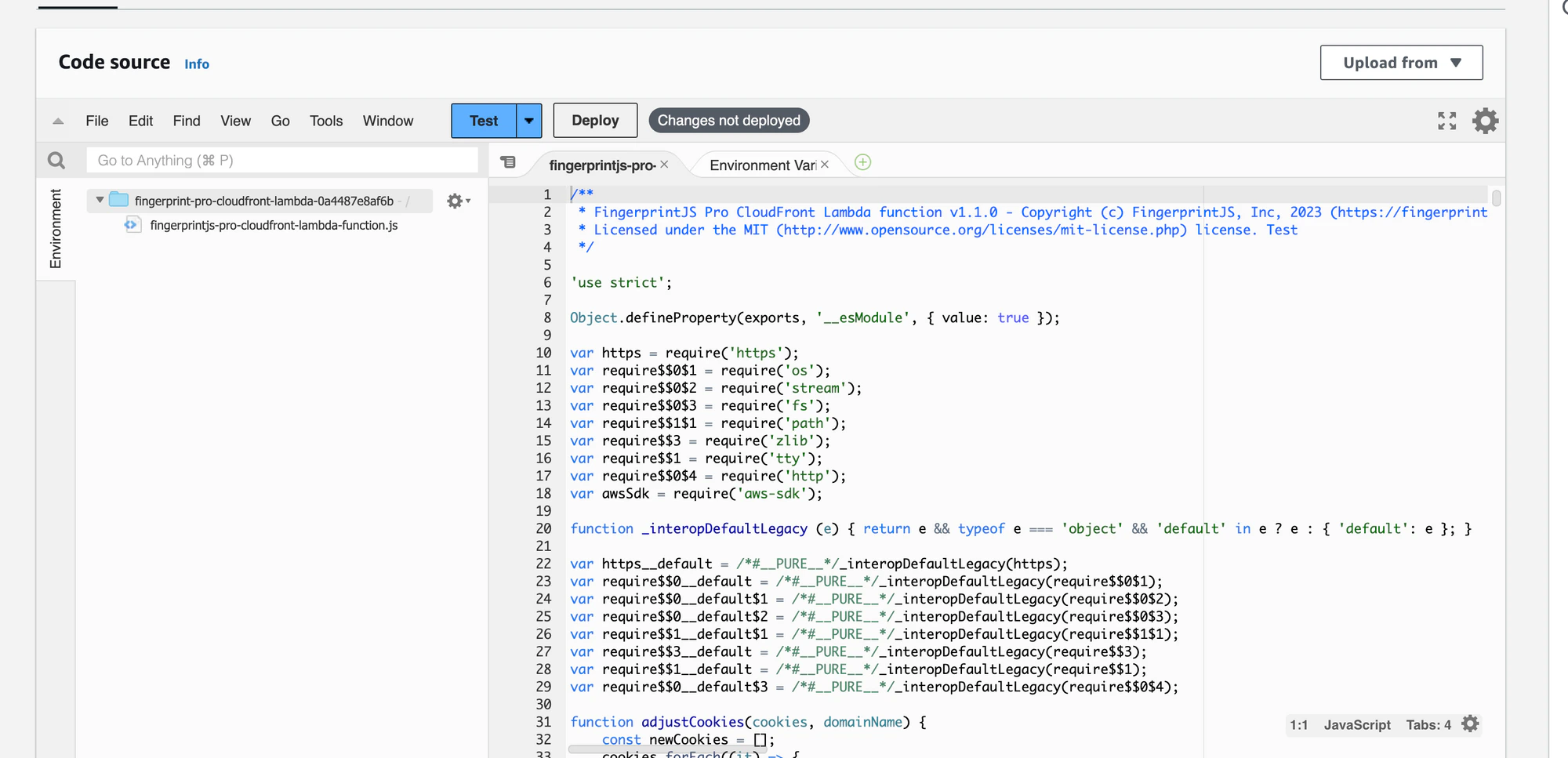
4. Scroll down to **Code source**.
5. Replace the content of `fingerprintjs-pro-cloudfront-lambda-function.js` with the latest Lambda code from the integration’s GitHub repository. Download the [latest release `package.zip` archive](https://github.com/fingerprintjs/aws-cloudfront-proxy/releases/latest), extract its content, and use the `fingerprintjs-pro-cloudfront-lambda-function.js` file.
6. Click **Deploy**.
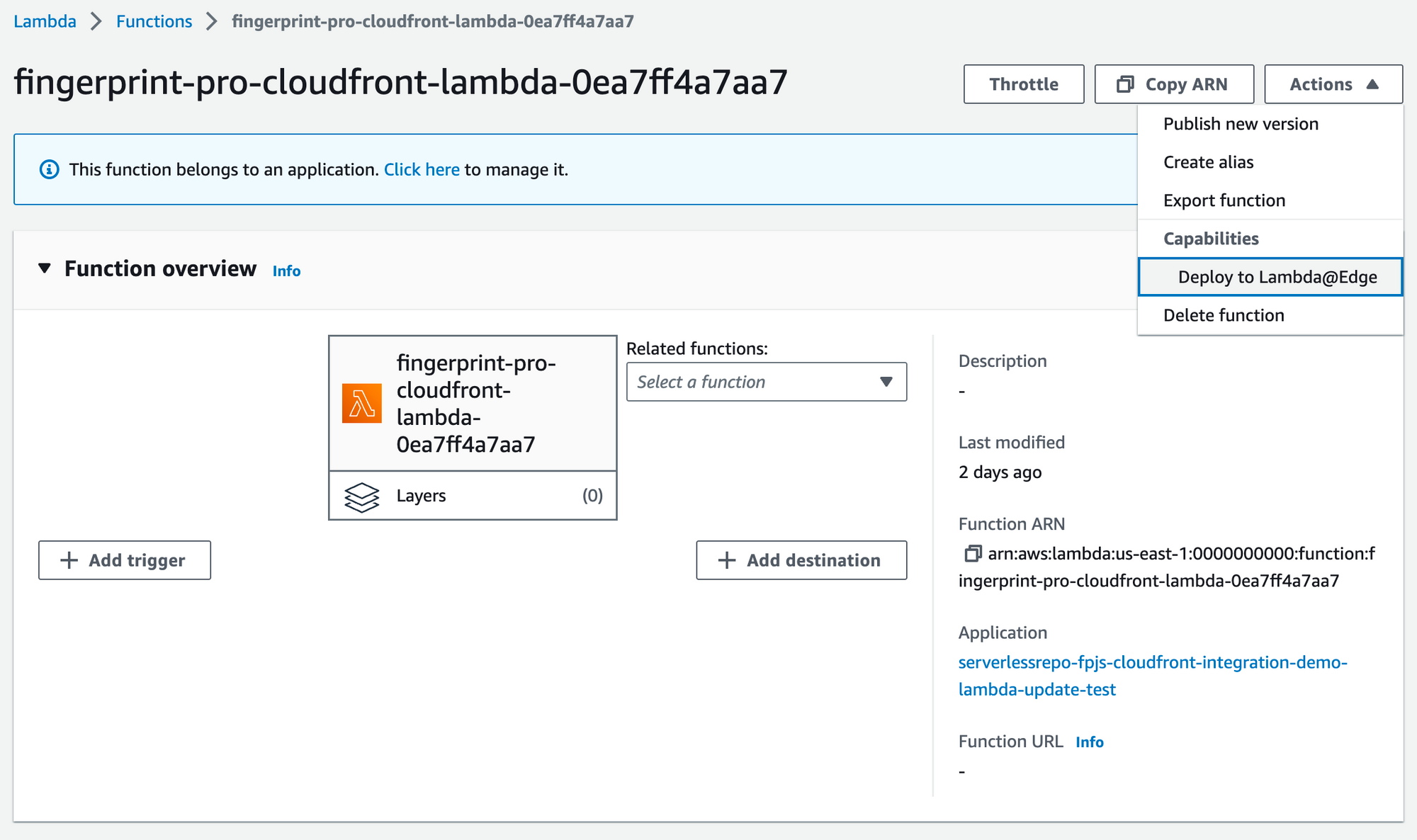
 7. Scroll back up and click **Actions** → **Deploy to Lambda\@Edge**.
 8. Select **Use existing CloudFront trigger on this function**.
9. Select your existing trigger.
8. Select **Use existing CloudFront trigger on this function**.
9. Select your existing trigger.
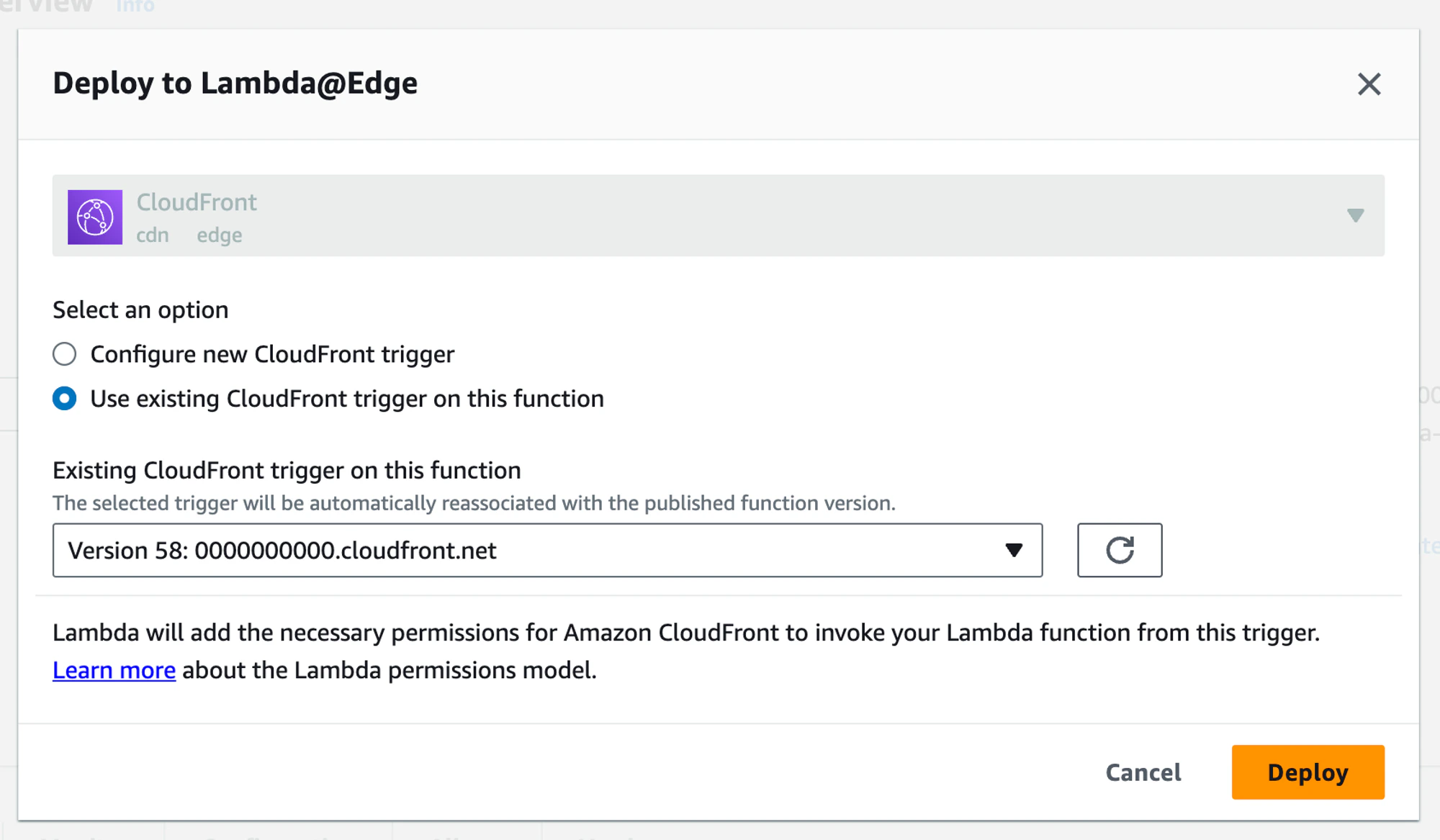 10. Click **Deploy**.
Your new Lambda function will be deployed and replicated across all regions. You can go to `https://yourwebsite.com/FPJS_BEHAVIOR_PATH/status` to check that the function is running on the latest version and that all required configuration variables are set.
10. Click **Deploy**.
Your new Lambda function will be deployed and replicated across all regions. You can go to `https://yourwebsite.com/FPJS_BEHAVIOR_PATH/status` to check that the function is running on the latest version and that all required configuration variables are set.